

Audit log and usage
Two pages answer most questions an admin, auditor or finance team asks about Sail:
- Audit log: who changed what, and when.
- Usage: how much Sail is used, and what it costs.
Owners, admins and auditors can see both. Neither ever shows what anyone wrote in a chat.
Audit log
Section titled “Audit log”Go to Admin → Audit log.
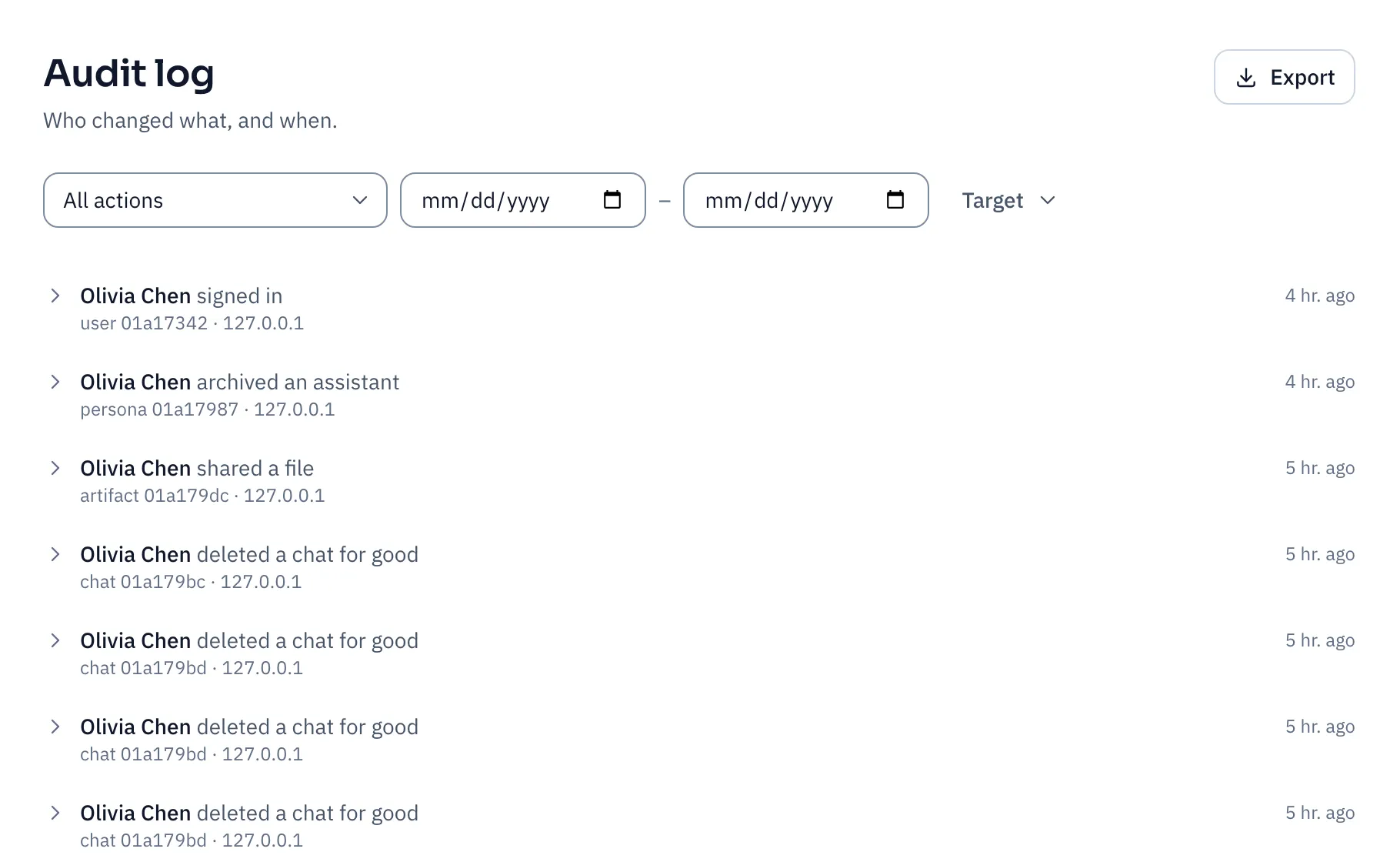
Each entry records who did it, what they did, to what, when, and from which IP address. Click an entry to see the values before and after the change.
What’s recorded:
- sign-ins, and people losing access through your identity provider;
- changes to people, roles, sessions and teams;
- policy and settings changes;
- assistants created, published, shared, archived or taken over;
- chats and files shared, and exports;
- Nexus connections, credential renewals and disconnects;
- erasure requests and decisions;
- owner recovery links.
Message content and secrets are never recorded.
Answer common questions
Section titled “Answer common questions”| Question | Do this |
|---|---|
| Who changed our policies last week? | Under All actions, pick policies.changed, then set the dates. |
| What did one admin do? | Click their name on any entry, then Only show actions by them. |
| What happened to one chat, file or assistant? | Click Target, then enter its type, such as chat, and its ID. |
| Our auditors want a copy | Click Export and choose CSV or JSON. Narrow the filters first for big ranges. |
Entries are kept for 365 days by default. Change it under Audit log in Policies.
Go to Admin → Usage.
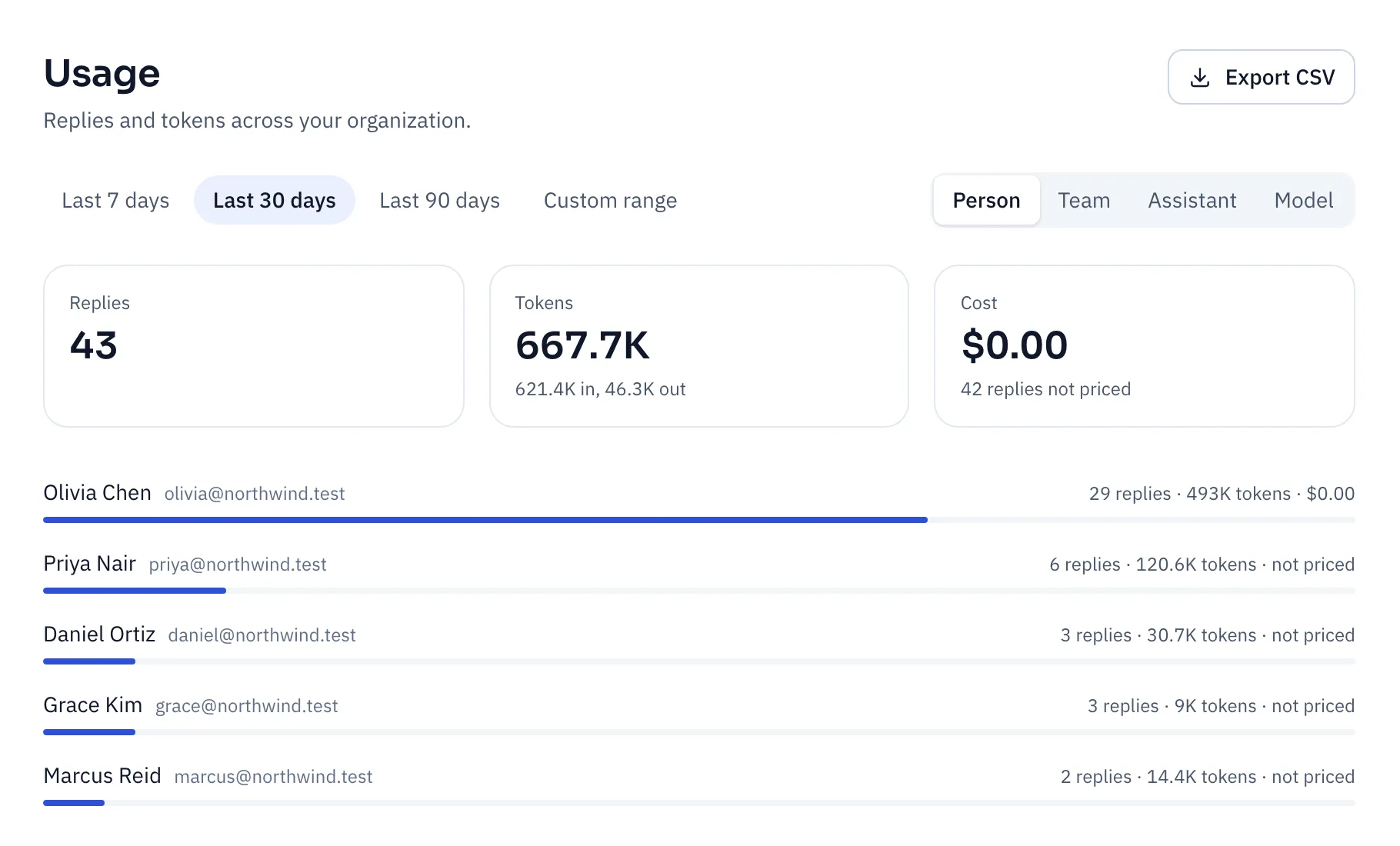
- Pick a period: Last 7 days, Last 30 days, Last 90 days, or a Custom range.
- Pick how to group it: Person, Team, Assistant or Model.
| You want to know | Group by |
|---|---|
| Which teams use Sail most, to plan budgets | Team |
| Whether the assistants you built are worth it | Assistant |
| How spend splits across models, before switching one | Model |
| Who the heaviest users are, before setting a limit | Person |
Cost appears when your Nexus reports prices for its models. It includes a separate line for background work: titles, memory and summaries. Replies without a price are counted as not priced, never as free.
Cost needs a paired Nexus connection. If you connected Nexus with an access token, usage shows replies and tokens only.
Click Export CSV to work with the numbers in a spreadsheet.
Everyone can see their own numbers under Your usage in the account menu.