

Split and compare
Compare replies sends one message to two, three or four panes at once and shows the answers side by side. Each pane can be a different assistant, or the same assistant on a different model.
It’s how you answer questions like:
- Which model is good enough? Is the fast model fine for customer emails, or does it need the deep one?
- Which assistant fits this job? Does the Ops analyst or the Chief of staff write the better board note?
- Is my change an improvement? Does the new draft of my assistant beat the published one?
- Can we keep this in-house? How close does the model on our own hardware get to a cloud model?
Start a comparison
Section titled “Start a comparison”Pick whichever is closest:
- On the welcome screen, click Compare replies.
- In a chat, open ⋯ at the top right and click Compare replies.
- In the message box, type
/compareand your question, then press Enter.
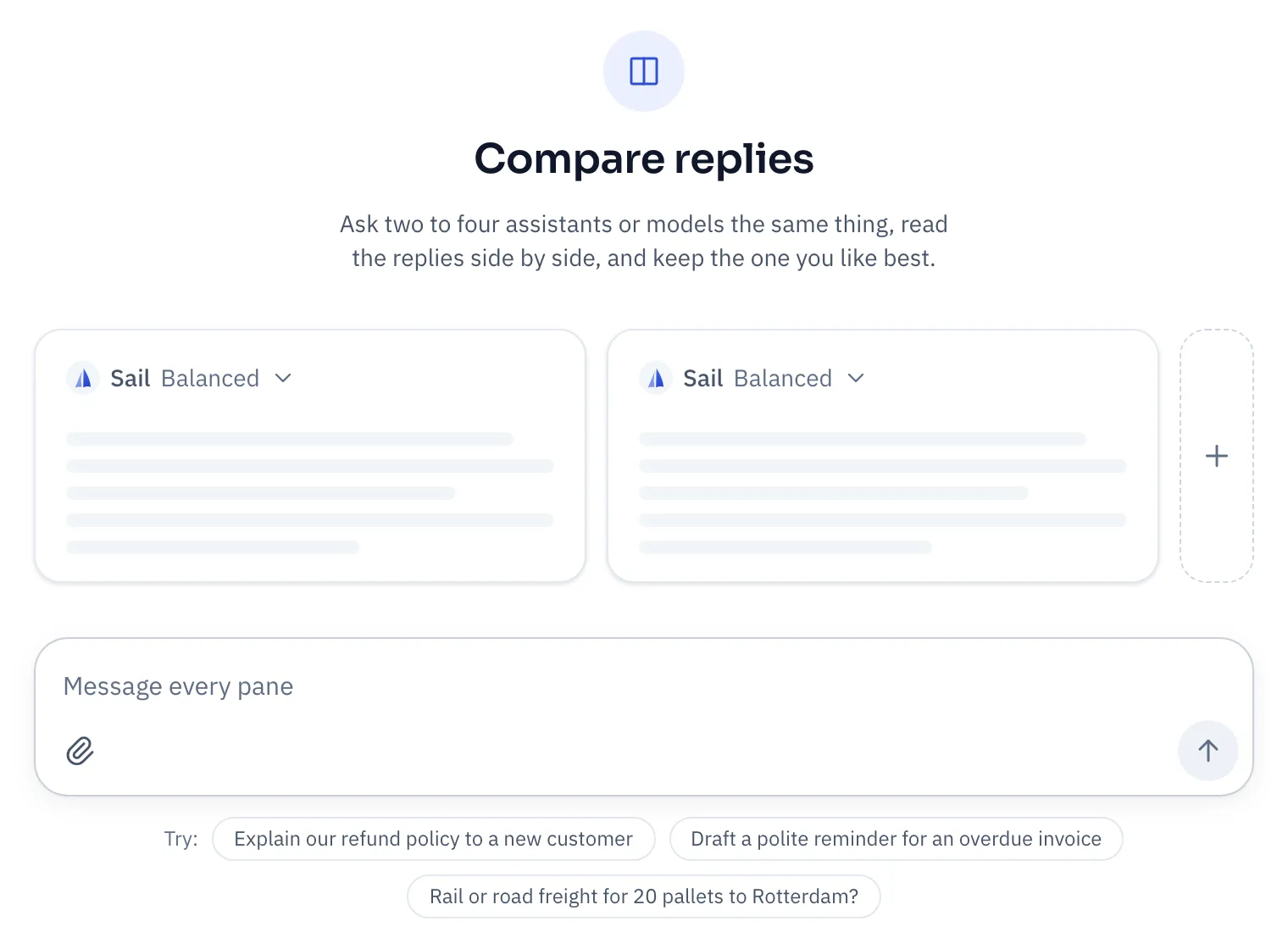
- In each pane, pick an assistant and a model.
- Click + to add a pane, up to four.
- Type your message and send. Every pane gets it, along with any files you attach.
Read the results
Section titled “Read the results”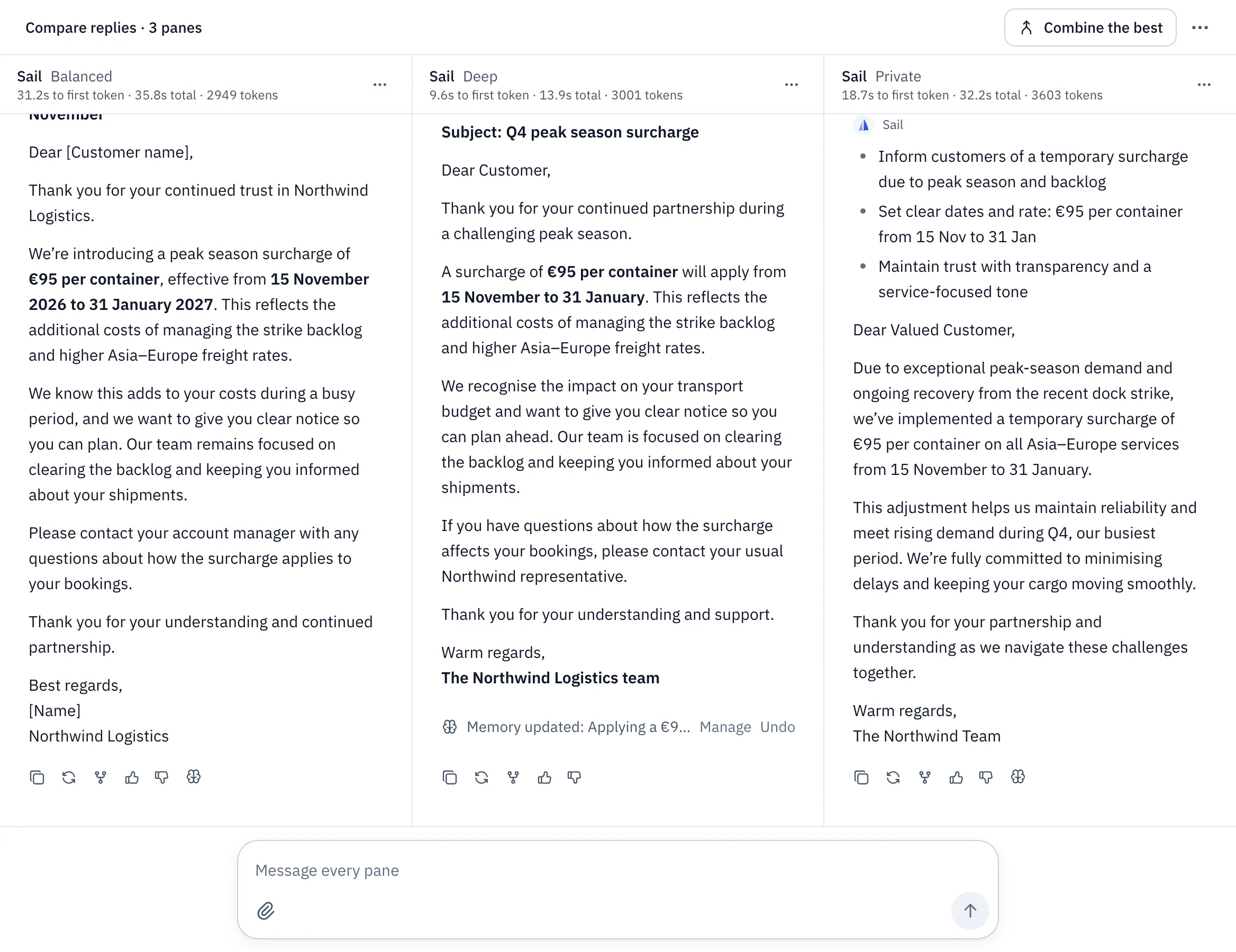
Each pane shows how long it took to start answering, how long in total, and how many tokens it used. Handy when speed matters as much as quality.
Want to follow up with just one pane? Click into it. The message box then says “Replying to” that pane only. Press Esc to talk to every pane again.
Pick a winner
Section titled “Pick a winner”Open ⋯ on a pane:
| Choose | What happens | Use it when |
|---|---|---|
| Keep this one | That pane becomes a normal chat. The others move to the trash. | You’ve seen enough. Carry on with the best answer. |
| Pop out | That pane becomes its own chat. The rest keep comparing. | One answer is worth keeping, but you’re still testing the others. |
| Fork | A copy of that pane becomes a new chat. The comparison stays as it is. | You want to take one answer somewhere new and keep the comparison for later. |
Or click Combine the best, and the first pane’s assistant merges the strongest parts of every reply into a new chat.
Test an assistant before you publish
Section titled “Test an assistant before you publish”If you’re editing an assistant, pick it in a pane and turn on Use the unpublished draft. Put the published version in the next pane. Now every question shows you, side by side, whether your change helped.
Try draft in the assistant editor sets this up for you.
If you don’t see Compare replies, your organization has turned it off for you.