

Your first chat
Every chat is with an assistant. New chats start with Sail, your company’s everyday assistant, unless you pick another.
Ask something
Section titled “Ask something”- Click New chat in the sidebar.
- Type your question in the message box.
- Press Enter to send. Shift Enter adds a new line.

The reply streams in. After a few seconds the chat gets a title in the sidebar.
Not sure what to ask? Click one of the starters under the box.
Pick an assistant
Section titled “Pick an assistant”The button at the right of the message box shows who you’re talking to.
- Click it.
- Under Switch to, pick an assistant.
- Under Model, pick a model, if the assistant offers more than one.
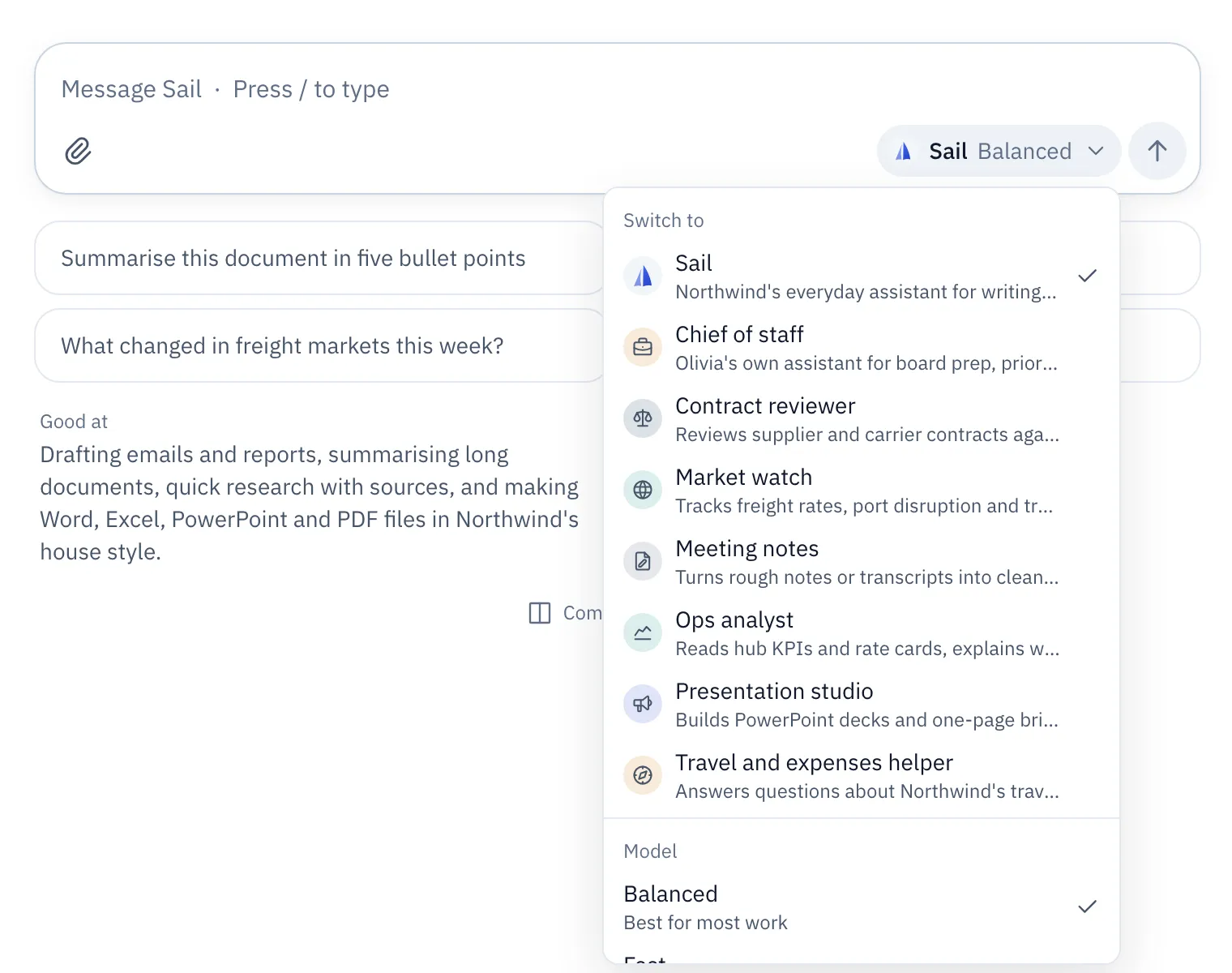
You can switch in the middle of a chat. A quiet line marks the change, and the new assistant sees everything said so far.
To ask another assistant for just one answer, type @ and its name, such as @Contract reviewer check clause 4. It answers that one message, then the chat goes back to its own assistant.
Attach a file
Section titled “Attach a file”- Click the paper clip, or drag files onto the message box.
- Ask about them in the same message: “Summarize this in five bullets.”
Attached files are saved to Folio, so you can use them again later. To bring in a file you already have, type @ and its name.
While it writes
Section titled “While it writes”- Stop ends the reply at once. What it wrote so far stays.
- Send another message while it’s writing, and it waits in a queue. It goes out when the reply finishes.
Work with the reply
Section titled “Work with the reply”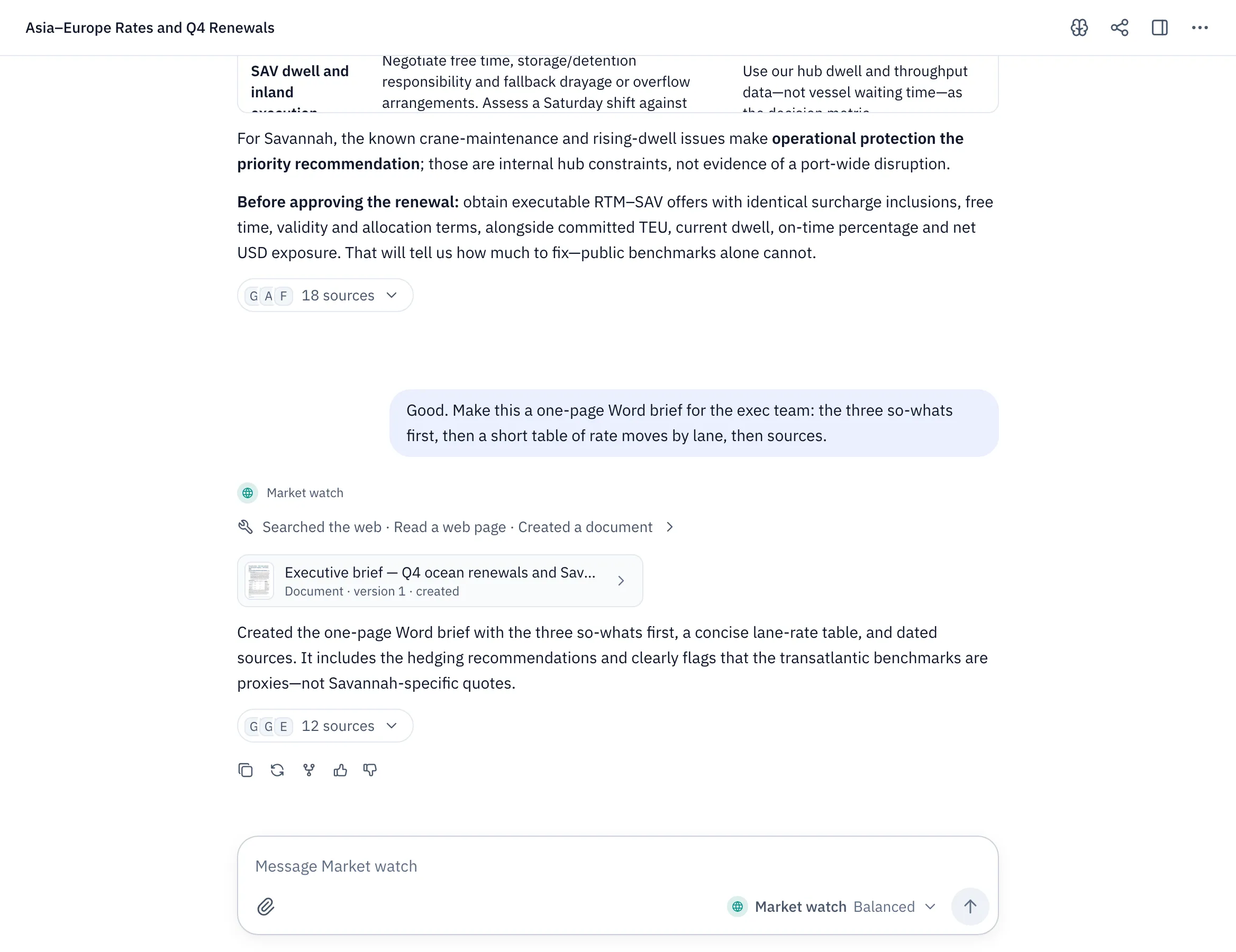
The buttons under each reply, from left to right:
- Copy reply copies it as text.
- Regenerate reply writes a new version. Use ‹ and › to move between versions.
- Fork from here starts a new chat from this point and leaves the original alone.
- Thumbs up or down tell the assistant’s owner whether it helped. They see the rating, never your chat.
To change your question, hover it and click Edit message. Sail answers again from there. In an empty message box, ↑ edits your last message.
What you might see in a reply
Section titled “What you might see in a reply”- Sources. When an assistant searches the web, numbered citations link to the pages it read. The full list sits under the reply.
- Tool steps. A short line such as “Searched the web · Created a document” shows what it did. Click it for the details.
- File cards. When an assistant makes a document, spreadsheet or deck, a card appears. Click it to open the file beside the chat.
- Memory updated. When Sail saves something about you, it says so under the reply. Click Undo if you’d rather it didn’t.
- Questions. If guessing would waste the work, the assistant asks first and suggests an answer. Pick one, or type your own.
Handy keys
Section titled “Handy keys”| Keys | What it does |
|---|---|
| ⌘ K | Search chats, assistants and files |
| / | Jump to the message box, from anywhere outside a text field |
| / at the start of a message | Commands, such as /summarize and /compare, and the assistant’s starters |
| @ | Mention an assistant or a file |
| ⌘ B | Collapse or expand the sidebar |
| ? | Show every shortcut |
On Windows and Linux, use Ctrl instead of ⌘. The full list is in Keyboard shortcuts.
- Chats: find, tidy and branch your chats.
- Assistants: pick the right one, or build your own.
- Memory: what Sail remembers about you, and how to change it.