

Folders
A folder keeps the chats for one piece of work together. It can also do more: give every chat in it the same assistant, the same instructions and the same files, so you never have to set the scene again.
Take a project like “Rotterdam operations”. Every chat about it needs the hub KPI workbook and the rate card, and should remember that the strike was in weeks 38–40. Put that in the folder once. Every new chat in it starts out knowing all of that.
Make a folder
Section titled “Make a folder”- In the sidebar, click the folder button next to Folders.
- Name it after the work, such as “Bluewater transition” or “Budget 2026”.
- Click Create.
Folders are yours alone. Nobody else sees them.
Put chats in it
Section titled “Put chats in it”- Start a chat in it: click + next to the folder. The welcome screen says “New chat in” and the folder’s name. The chat is filed when you send your first message.
- Move an existing chat: drag it onto the folder, or use ⋯ → Move to.
- Take a chat out: drag it back onto your chat list, or use Move to → Out of the folder.
The sidebar’s own New chat never files a chat. Only the folder’s + does.
Give the folder its own setup
Section titled “Give the folder its own setup”Click ⋯ next to the folder, then Folder settings. Everything here is optional.
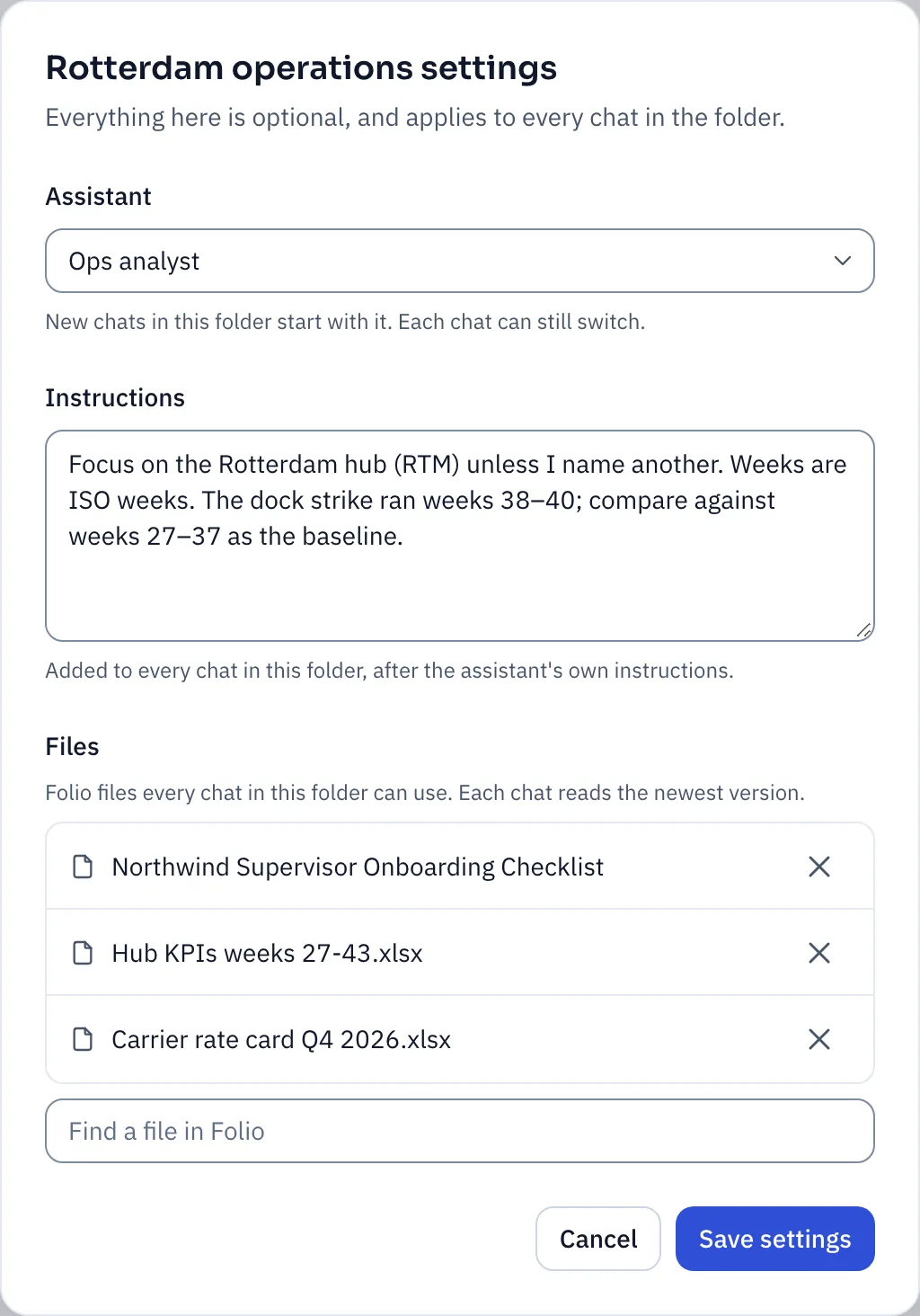
| Setting | Use it when | Example |
|---|---|---|
| Assistant | One assistant fits almost every chat here. New chats start with it, and you can still switch. | Ops analyst for “Rotterdam operations” |
| Instructions | Every chat needs the same context or rules. They’re added after the assistant’s own instructions. | “Focus on RTM. The strike was weeks 38–40. Report in EUR.” |
| Files | Every chat should be able to read the same documents. Each chat reads the newest version. | The hub KPI workbook and the carrier rate card |
Click Save settings. The instructions and files apply to every chat in the folder, including ones already there.
Moving a chat into a folder mid-conversation? A line in the chat marks the point. Replies from there on use the folder’s instructions and files.
Split a big folder into groups
Section titled “Split a big folder into groups”When a folder fills up, add groups inside it. “Rotterdam operations” might have Strike recovery and Peak season.
- Click ⋯ next to the folder, then New group.
- Drag chats onto a group, or use ⋯ → Move to.
- Click + on a group to start a chat right there.
Groups share the folder’s setup. Folders can’t go inside other folders.
Sort it your way
Section titled “Sort it your way”- ⋯ next to a folder → Sort chats orders the chats inside: by Last activity, Name, Date created, or Manual to drag them where you want.
- The sort button next to Folders orders the folders themselves.
Your sort follows you to any device you sign in on.
Delete a folder
Section titled “Delete a folder”⋯ → Delete folder. No chats are deleted. They move back to your chat list. Deleting a group works the same way: its chats stay in the folder.