

People and teams
People’s accounts are created the first time they sign in. You don’t invite anyone. You decide who can sign in (in your identity provider and sign-in settings), then shape what they can do with roles and teams.
Every person has one role.
| Role | Can | Give it to |
|---|---|---|
| Owner | Everything, including managing other owners and the sign-in provider | Two or three people who run Sail. Always have at least two. |
| Admin | People, teams, policies, organization assistants, templates, usage, audit log, Nexus and settings. Can’t manage owners. | IT or ops people who run Sail day to day |
| Auditor | Read the audit log and usage. Nothing else. | Compliance, security or finance reviewers |
| Member | Use Sail | Everyone else |
No role can read other people’s chats or memories. Not even owners.
Change someone’s role
Section titled “Change someone’s role”- Go to Admin → People.
- Click ⋯ next to the person, then pick a role under Role.
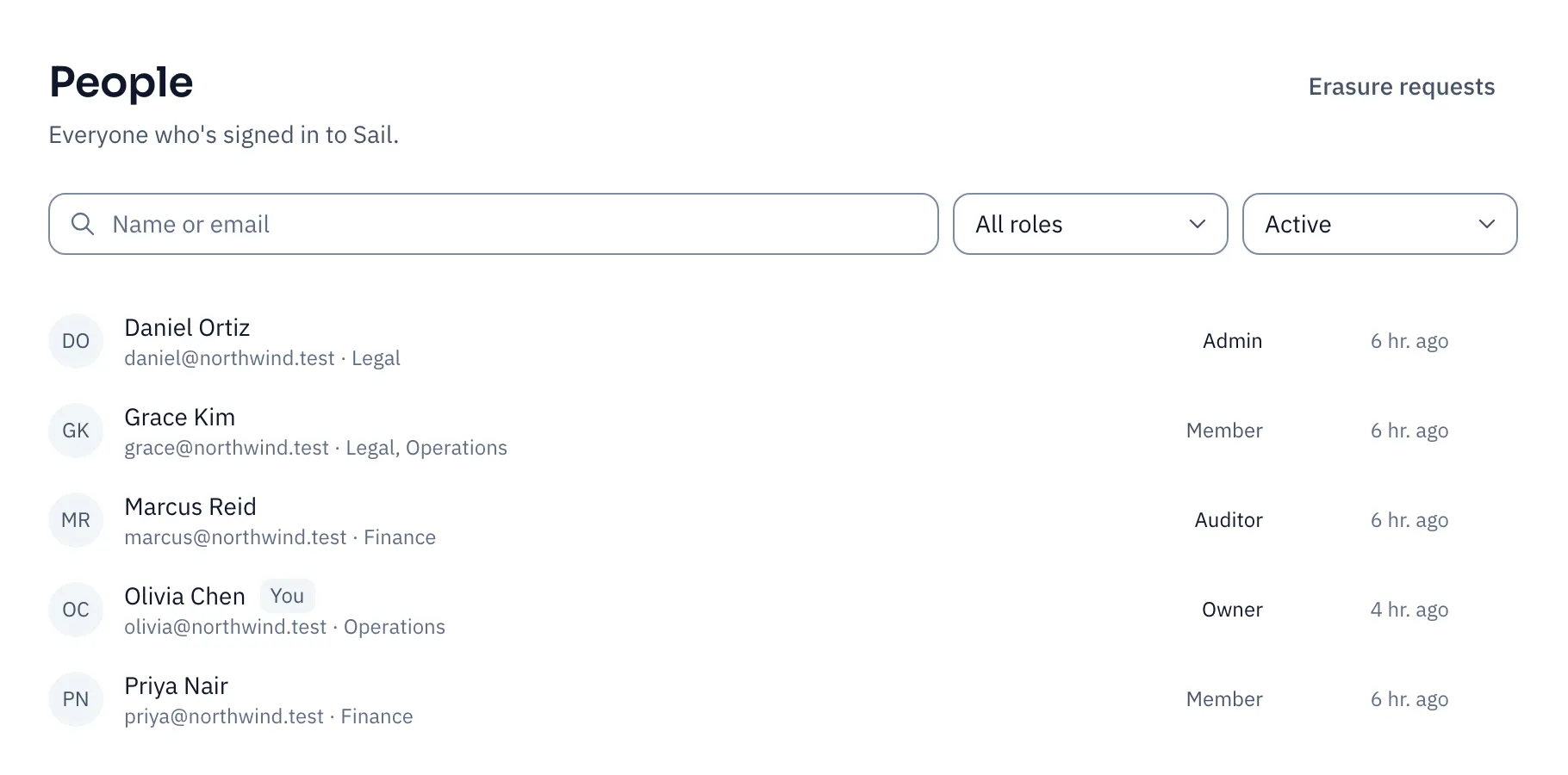
Only owners can make someone an owner. Nobody can change their own role, and Sail always keeps at least one active owner.
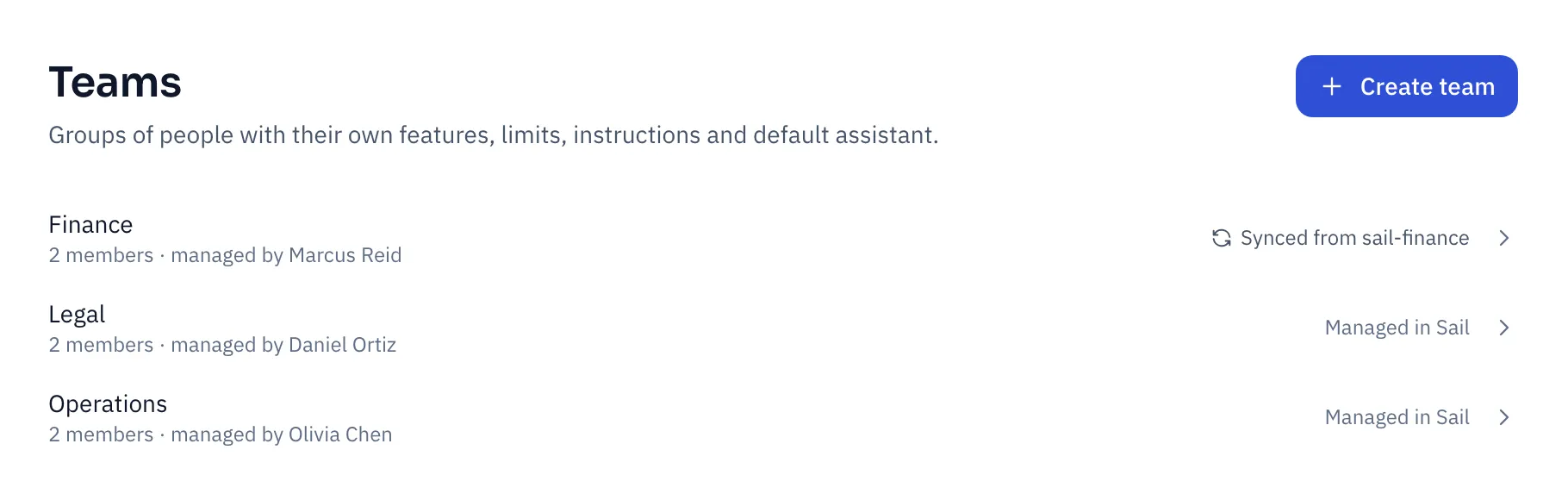
A team is a group of people who get the same setup. Use teams when a group needs something the rest of the company doesn’t:
- Finance gets a higher upload limit for big workbooks, and its own month-end assistant.
- Legal gets instructions like “Cite the clause number” and starts every chat with the Contract reviewer.
- Operations is the only team allowed to pick any model, while it evaluates them.
Create a team
Section titled “Create a team”- Go to Admin → Teams and click Create team.
- Name it.
- Choose where its members come from:
- Managed in Sail: you add and remove people by hand.
- Sync members from a provider group: type the group’s name exactly as your identity provider sends it. People join and leave as their groups change, at their next sign-in or within the hour.
Sync from your identity provider whenever you can. Nobody has to remember to update Sail when someone changes teams.
Set the team up
Section titled “Set the team up”Open the team.
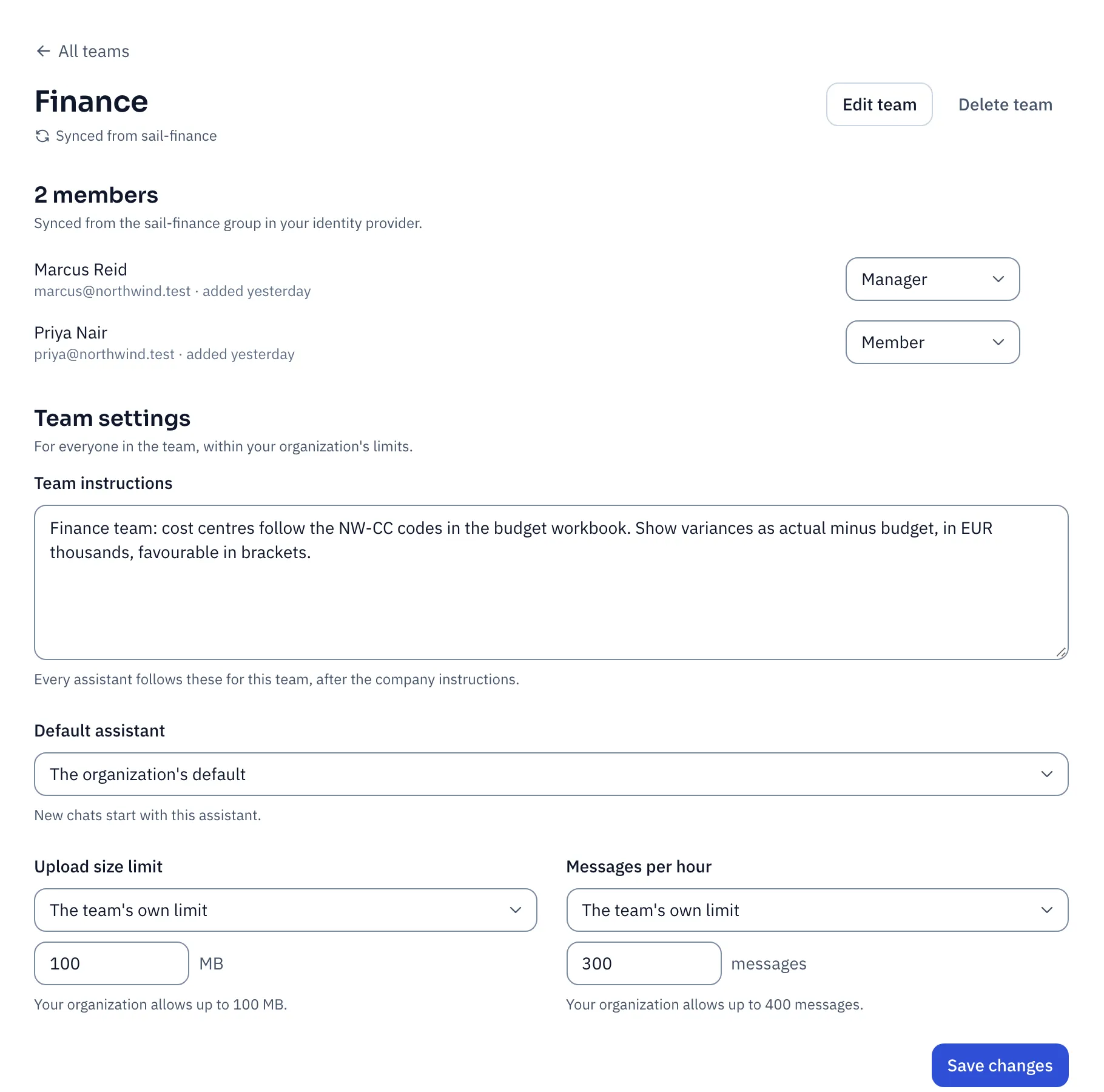
| Setting | Use it for | Example |
|---|---|---|
| Team instructions | Rules every assistant follows for this team, after the company instructions | “Report in EUR. Flag any variance over 5%.” |
| Default assistant | The assistant new chats start with, for people on this team | Budget analyst for Finance |
| Upload size limit | Raising the limit for a team that works with big files | 100 MB for Finance’s workbooks |
| Messages per hour | Raising the limit for heavy users | No limit for the analysts |
Team limits can only raise a limit, up to the maximum in Policies. Someone in several teams gets the most generous value.
Team managers
Section titled “Team managers”Give a team a Manager, and they can run it without being an admin. Managers see My teams in their sidebar. There they can:
- add and remove members, for teams managed in Sail;
- change the team’s instructions, default assistant and limits;
- create assistants for the team.
Only admins can rename a team, link it to a provider group, delete it, or appoint managers.
Teams also decide who gets features. In Policies, any feature can be turned on for Chosen teams only.
When someone leaves
Section titled “When someone leaves”There’s no “delete person” button, on purpose. Their work might still matter, and the audit log must keep pointing at them.
The cleanest way is to remove them in your identity provider. Sail checks every person with the provider about once an hour, so they’re signed out within the hour.
To act straight away in Sail:
- Go to Admin → People, click ⋯ next to them.
- Click Disable account.
They’re signed out everywhere and can’t sign in again. Then:
- Their chats can’t be opened by anyone, and are deleted after the period set in Chats of people who left (90 days by default).
- Their personal assistants are archived. If colleagues used one, an admin can rescue it: in Assistants, filter by From people who left, then click Take over.
- Their Folio files move to the trash.
Changed your mind? Enable account brings them back, as long as their chats haven’t been deleted yet.
To sign someone out without disabling them, for example after a lost laptop, use End all sessions.
Erasure requests
Section titled “Erasure requests”People can ask for all their data to be erased, from Your data in their account menu. You decide.
- Go to Admin → People → Erasure requests.
- Click Approve or Decline.
Approving deletes their chats, memories, own assistants and Folio files for good, and closes their account. It can’t be undone. Nobody can decide their own request, and the last owner can’t be erased.