

Documents, spreadsheets and more
Every file in Folio opens right inside Sail, looking the way it does in Word, Excel or PowerPoint. This page goes through each kind: what Sail shows, and the moves that save the most time.
For finding, sharing and versioning files, see Folio basics.
Documents, presentations and PDFs
Section titled “Documents, presentations and PDFs”Word files, PowerPoint decks and PDFs open as pages, the way they’d print.
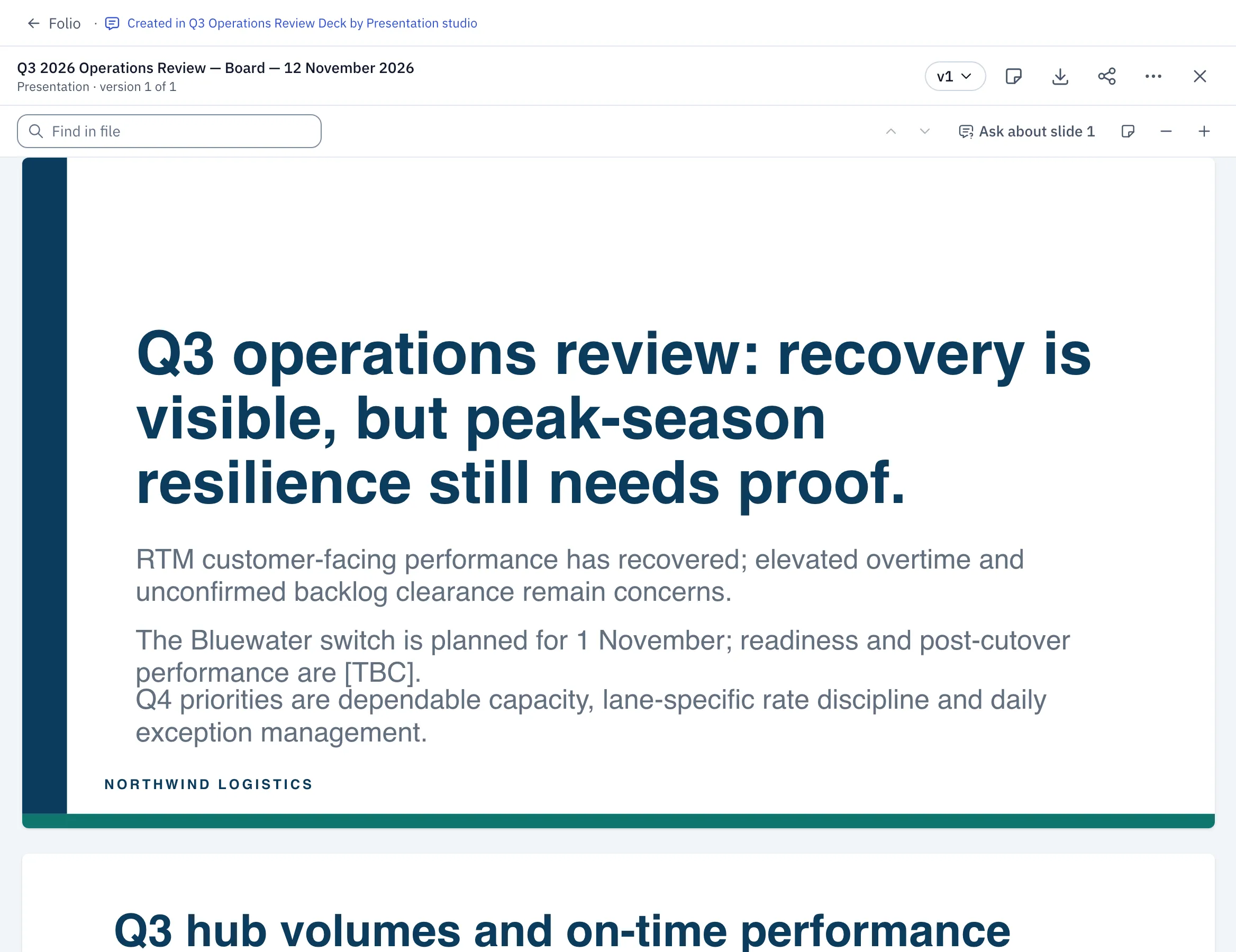
- Find in file searches the text. Enter jumps to the next match.
- Select text, then Ask about this or Add note.
- On a deck, Ask about slide 3 puts that slide in the message box.
- Zoom in and out at the top right.
Good to ask for:
- “Turn this chat into a one-page Word brief for the exec team.”
- “Make a nine-slide board deck from these notes, with speaker notes.”
- “Make a PDF handout of the top five peak-season risks.”
Decks and documents use your company’s templates, so they arrive in your fonts and colors. To change a Word file or deck an assistant made, ask in the chat: “Shorten slide 4 to three bullets.” You get a new version, and the old one is kept.
Spreadsheets
Section titled “Spreadsheets”Excel files open as a real grid, with every sheet and working formulas. Sheet tabs sit along the bottom.
- Select cells, then Ask about cells. The range goes into your question, such as
Q3!A1:C4. - Note on cells leaves a note to send later with Revise with notes.
- Export as CSV saves the first sheet for another tool.
Good to ask for:
- “Rank the Q4 lane rate increases: lane, carrier, Q3, Q4, and the % change as a formula.”
- “Build a budget tracker for the Savannah hiring: role, start date, weekly cost, total.”
Because the formulas are real, the file keeps working when someone changes a number in Excel.
A page is a small interactive web page: a dashboard, a calculator, an explainer. Ask for one when a static file would be too flat.
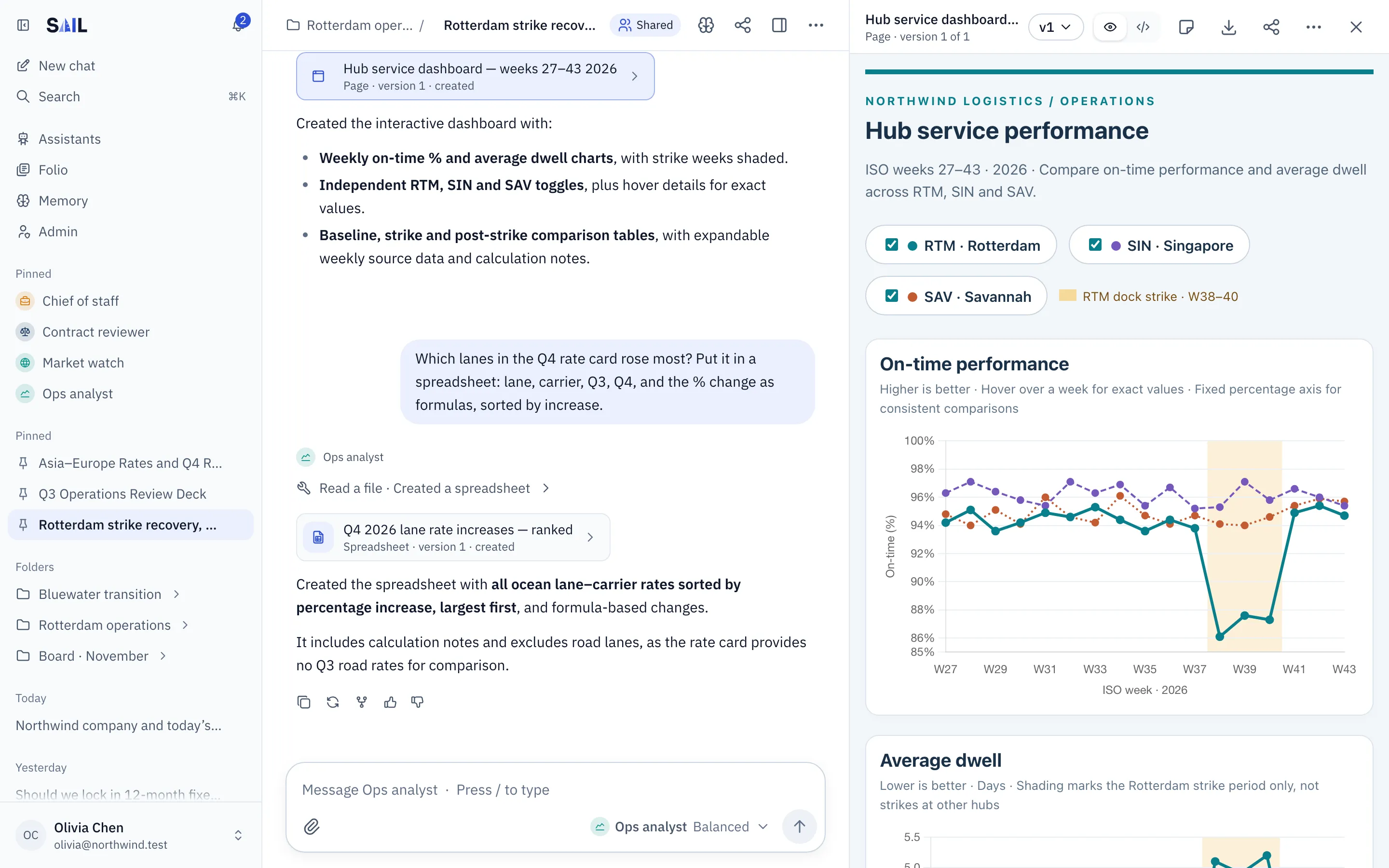
- “Build a dashboard of weekly on-time % and dwell time for RTM, SIN and SAV, with the strike weeks shaded.”
- “Make a calculator for overtime cost by hub and shift.”
Pages are kept safe:
- They run apart from Sail, so they can’t read your chats, your files or your account.
- They can’t connect to the internet. Everything they show is built into the page.
- A link inside a page asks before it opens anything.
Preview shows the page running. Source shows its code.
If your organization turned off interactive pages, they show without their scripts, so charts and buttons don’t move. If your admin hasn’t set up the page sandbox, you see the page’s source instead.
Text, Markdown, code and images
Section titled “Text, Markdown, code and images”- Markdown shows formatted, with Preview and Source to switch.
- Code shows with syntax colors.
- Text shows as written. For very long files, Sail shows the start. Download the file to see the rest.
- Images open full size.
What you can upload
Section titled “What you can upload”| Kind | Files |
|---|---|
| Documents | Word (.docx), RTF, EPUB |
| Spreadsheets | Excel (.xlsx), CSV |
| Presentations | PowerPoint (.pptx) |
| PDFs | .pdf |
| Text | Plain text, Markdown, HTML, source code |
| Images | PNG, JPEG, GIF, WebP, SVG |
Old Office formats (.doc, .xls, .ppt) aren’t accepted. Open them in Office and save them in the newer format first.
Sail can’t read the text in scanned PDFs yet.