

Assistants
An assistant is an AI coworker set up for one job: reviewing contracts, answering travel questions, drafting the board update. Someone who knows the job sets it up once. Everyone else just picks it and gets good answers without writing long prompts.
Think of it as briefing a new colleague. You tell them what the job is, hand them the documents they need, and say what they must never do. That’s exactly what the assistant editor asks you.
Find an assistant
Section titled “Find an assistant”Click Assistants in the sidebar.
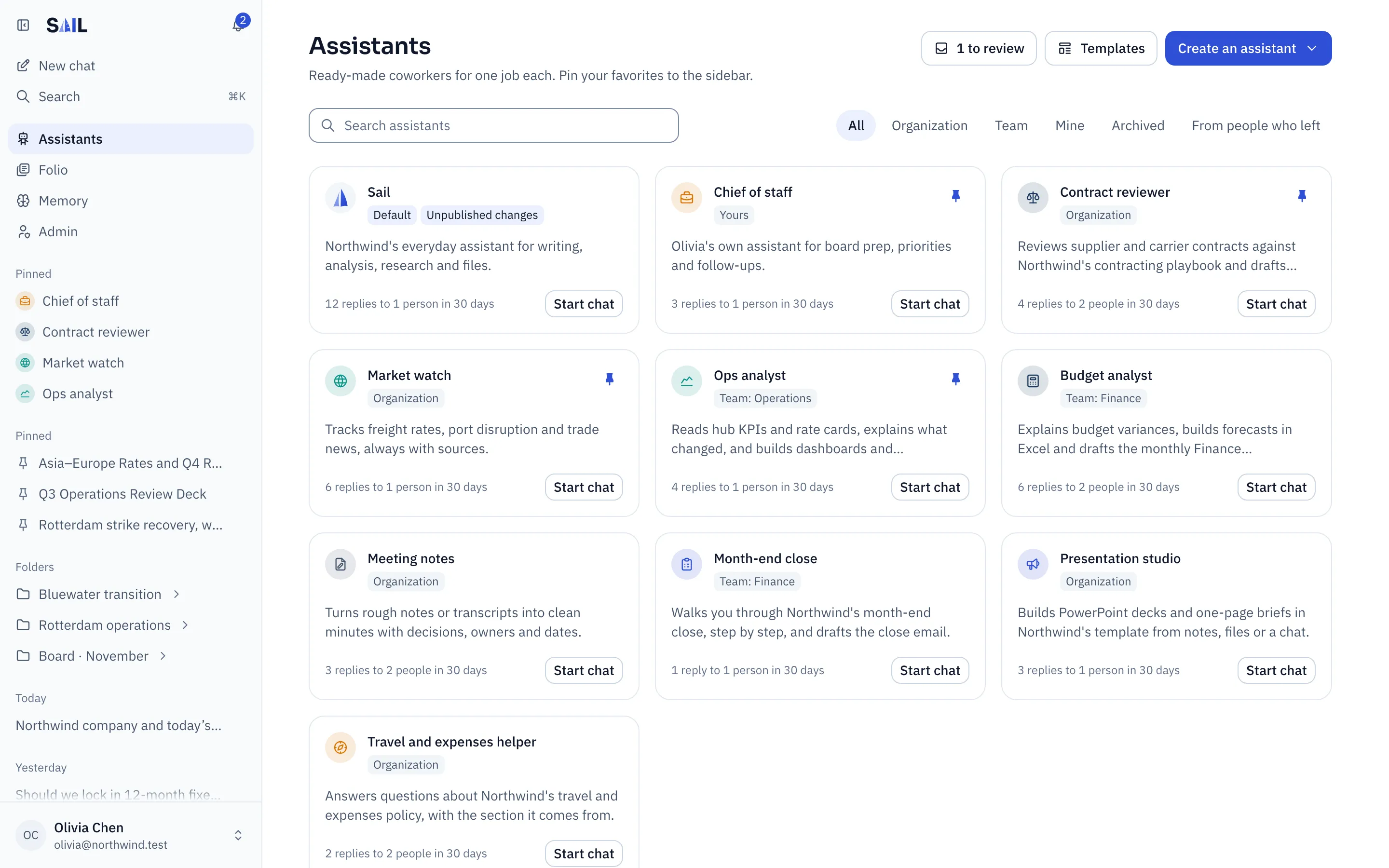
- Search by name, or filter by Organization, Team or Mine.
- Click Start chat to talk to one.
- Click the pin on a card to keep it in your sidebar. Pin the two or three you use every day.
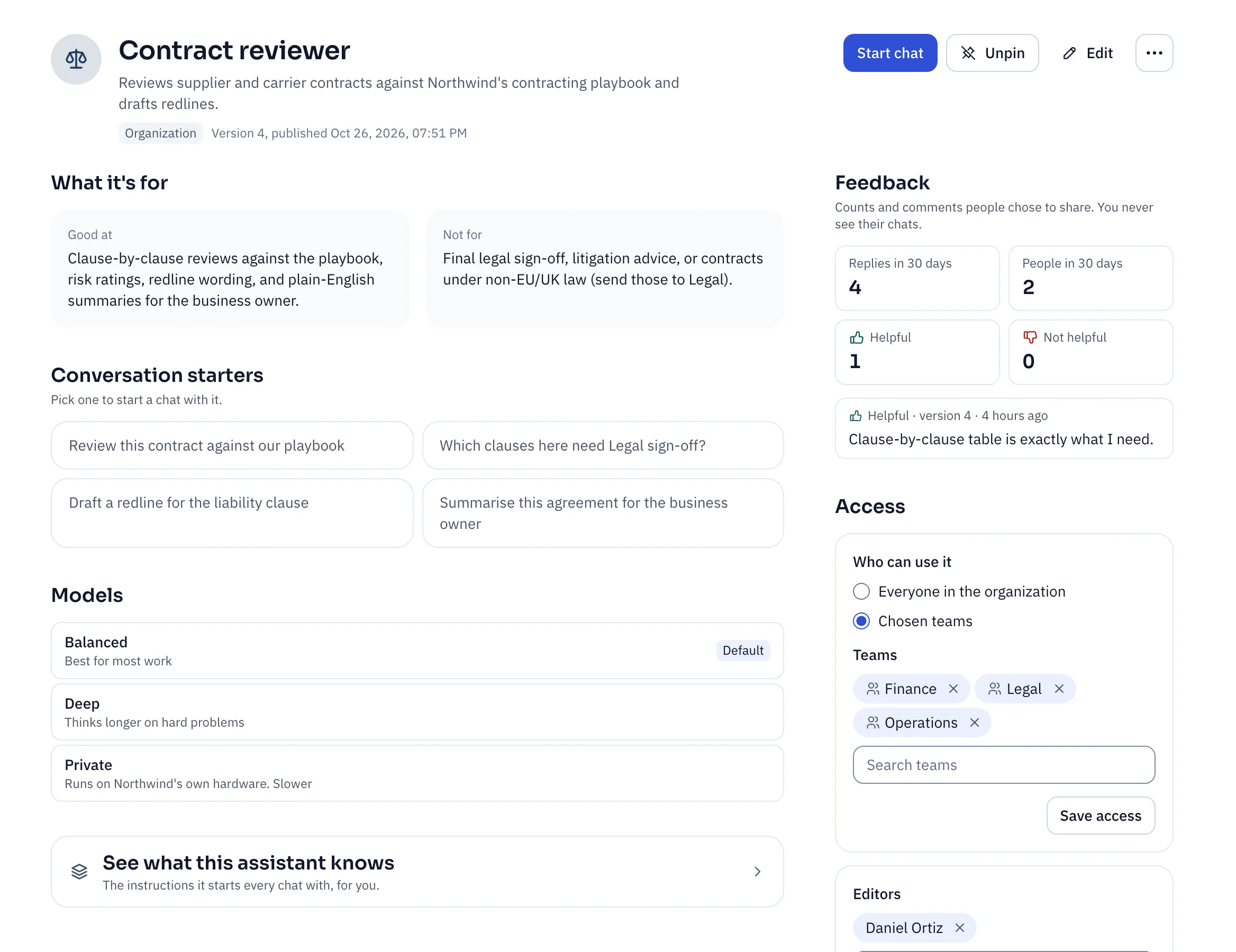
Not sure an assistant fits? Click its card. Good at and Not for tell you in two lines, and the conversation starters show the kind of question it expects.
Why did it answer like that?
Section titled “Why did it answer like that?”Click See what this assistant knows. It shows the exact instructions the assistant starts every chat with, in order:
- Sail’s rules, which nobody can remove.
- Organization instructions, written by your admins for everyone.
- Team instructions, for your team.
- This assistant: its own instructions and settings.
- Folder, if the chat is in a folder with its own instructions.
- Your preferences and Your memory.
So if every answer comes back in British English, or always ends with a disclaimer, this view shows which layer asked for it.
Who can use which assistant
Section titled “Who can use which assistant”| Kind | Who makes it | Who can use it | A good fit for |
|---|---|---|---|
| Organization | Admins | Everyone, or chosen teams | Jobs the whole company has, like travel and expenses questions |
| Team | That team’s managers | That team | One team’s work, like Finance’s month-end close |
| Personal | You | You, and anyone you share it with | Your own routines, like drafting your weekly update |
Your organization decides whether people can make personal assistants. If you can’t see Just for me when you create one, ask your admin.
Create an assistant
Section titled “Create an assistant”- Go to Assistants.
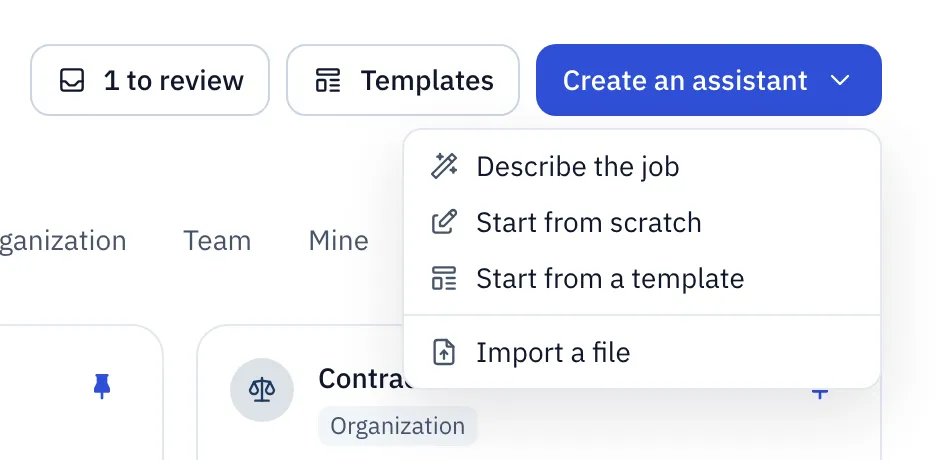
- Click Create an assistant.
- Pick how to start.
| Pick | When |
|---|---|
| Describe the job | You know what you want but not how to write instructions. Most people should start here. |
| Start from scratch | You already have instructions you trust, perhaps from another tool. |
| Start from a template | A ready-made assistant that comes with Sail is close to what you need, such as Meeting notes or Research. |
| Import a file | A colleague exported an assistant from Sail and sent you the file. It opens as a draft, so you can check it first. |
Describe the job
Section titled “Describe the job”Write a few sentences the way you’d brief a person. Cover three things: who uses it, what they ask, and what it must not do.
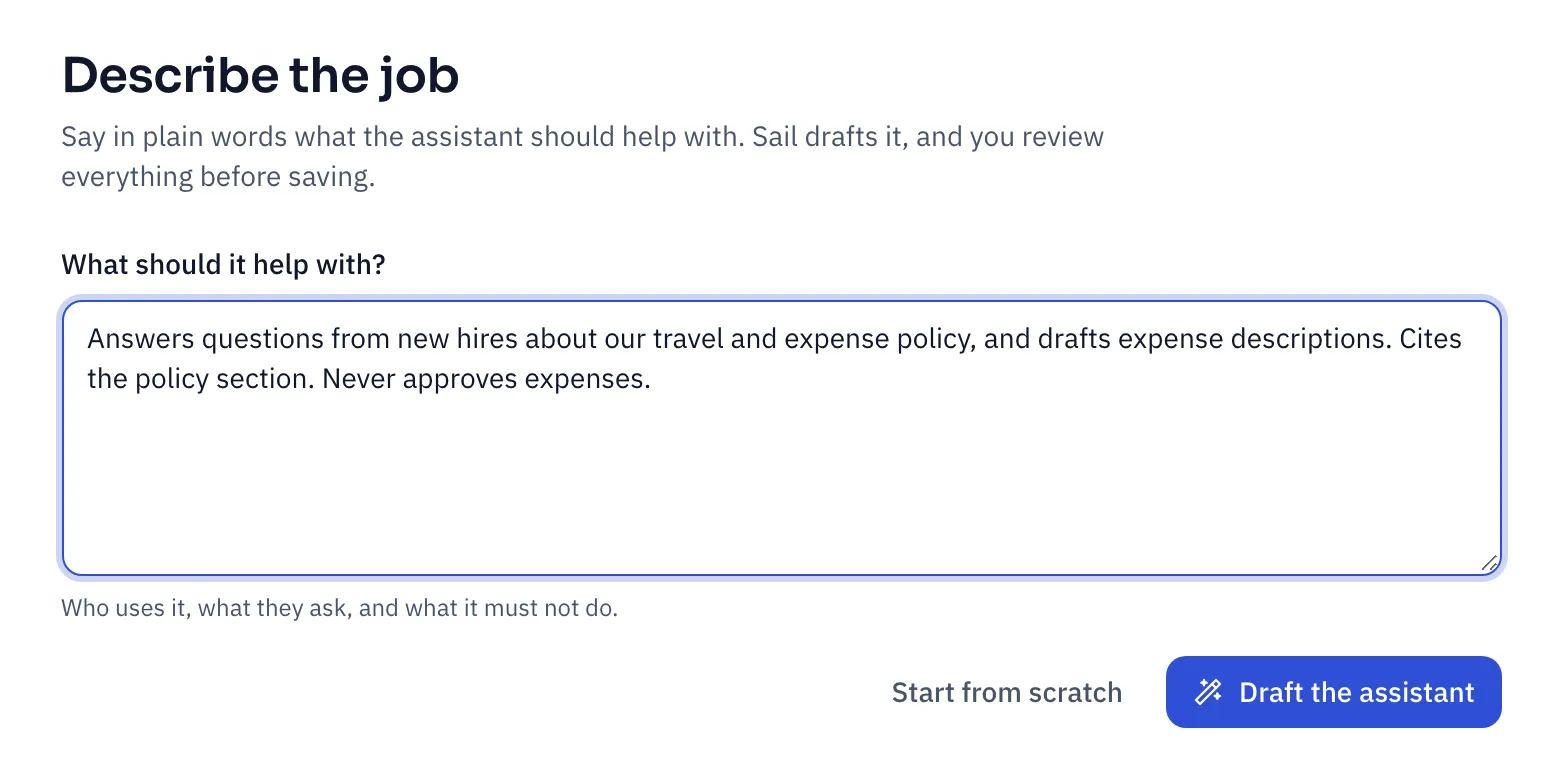
Click Draft the assistant. Within a minute, Sail writes a name, instructions and conversation starters. You review everything in the editor before anything is saved.
Set it up for the job
Section titled “Set it up for the job”The editor has one section for each question you’d answer when briefing a colleague. Here’s what each one is for, with an example.
Who should be able to use it?
Section titled “Who should be able to use it?”Who it’s for picks the audience: Just for me, a team, or the whole organization.
Start with Just for me while you try an idea. When it works, share it, or submit it to your team (see Share it or hand it over).
How will people know when to use it?
Section titled “How will people know when to use it?”Identity is what people see before they start a chat.
- Description: one line in the directory. “Answers travel and expense questions with the policy section it comes from” beats “Helpful travel assistant”.
- Good at and Not for: shown when someone starts a chat. Not for saves people from misusing it. For example, the Contract reviewer says it’s not for final legal sign-off.
- Conversation starters: up to four, written the way people would really type them, such as “Can I expense a taxi after 9 pm?”. They’re the fastest way to show what good questions look like.
How should it do the job?
Section titled “How should it do the job?”Instructions is the brief. Write it like a note to a new hire: what the job is, how to do it well, and what to avoid.
You help Northwind staff with travel and expense questions.Answer from the attached policy, and name the section you used.If the policy doesn't cover it, say so and suggest asking Finance.Keep answers to five sentences or fewer.You don’t need to repeat company-wide rules. Your organization’s instructions are added on top, every time.
What does it need to know?
Section titled “What does it need to know?”Knowledge holds up to 30 files from Folio that the assistant reads in every chat. Use it for the documents someone in this job would keep open: the policy, the price list, the playbook, last year’s examples.
- Each file stays at the version you attach. When the policy changes, attach the new version, so nobody gets answers from an old copy by surprise.
- Everyone who uses the assistant gets answers based on these files. Attach only what all of them may read.
Which model should answer?
Section titled “Which model should answer?”Models is an ordered list. The first one is the default.
Give each model a label and a hint that make sense to the people using it, not the model’s technical name. For example:
| Label | Hint | When people pick it |
|---|---|---|
| Balanced | Best for most work | Everyday questions |
| Deep | Thinks longer on hard problems | A tricky contract clause or a forecast |
| Private | Runs on our own hardware | Anything too sensitive for a cloud model |
- Reasoning effort sets how long a model thinks before it answers, for models that can.
- Turn on Let people switch models to let people pick from your list in the message box. Leave it off when one model is clearly right.
- If a model disappears from Nexus, chats move to the next one in the list, and the editor warns you.
- Leave the list empty to use the default assistant’s models.
The editor also warns you when a model can’t use tools. An assistant on that model answers without web search, files or memory.
Should it look things up or remember people?
Section titled “Should it look things up or remember people?”Tools and memory decides what it can reach beyond the chat.
- Web search: turn it on for jobs that need current facts, like market news or a supplier’s public terms. Leave it off for jobs that must stick to your own documents.
- Nexus tools: tools your Nexus offers, such as a CRM lookup. Enter their names, separated by commas.
- Use the person’s memory: on for most assistants, so it knows each person’s role and how they like answers.
- Keep its own memory: for a coach-style assistant that should remember things only it needs, like where each person is in their onboarding.
How should answers look?
Section titled “How should answers look?”Answers shapes every reply.
- Tone, Format and Language: for example, “Friendly and direct”, “Short paragraphs”, “Same as the question”.
- Always cite sources: turn it on for research and policy assistants, so every fact names where it came from.
- Asks before starting sets how often it asks a question before it begins:
- Often for big pieces of work, like a board deck, where a wrong guess wastes ten minutes.
- When needed for most assistants.
- Rarely for quick-answer assistants, like a travel policy helper.
What must it never do?
Section titled “What must it never do?”Guardrails are the hard limits.
- Topics it refuses: such as “salary negotiations, medical advice”.
- Disclaimer: a line it adds where it matters, such as “This isn’t legal advice.”
- Answer only from its knowledge: it answers from the attached files alone, and says so when they don’t cover a question. Turn this on for an HR or policy assistant, where a confident guess is worse than “I don’t know”.
Try it, then publish
Section titled “Try it, then publish”Click Try draft to chat with your draft beside the published version. Ask the same question to both and compare. Nobody else sees the draft.
When it’s ready:
- Click Publish.
- Under What changed, write a short note, such as “Shorter answers, new starters”. Your future self will thank you.
- Click Publish.
Everyone using the assistant gets the new version with their next message, even in chats already going. Not ready yet? Save draft keeps your changes to yourself.
Improve it over time
Section titled “Improve it over time”If you own or edit an assistant, its page shows Feedback: replies and people in the last 30 days, thumbs up and down, and comments people chose to share. You never see their chats.
A run of thumbs down after a change? Check Versions.
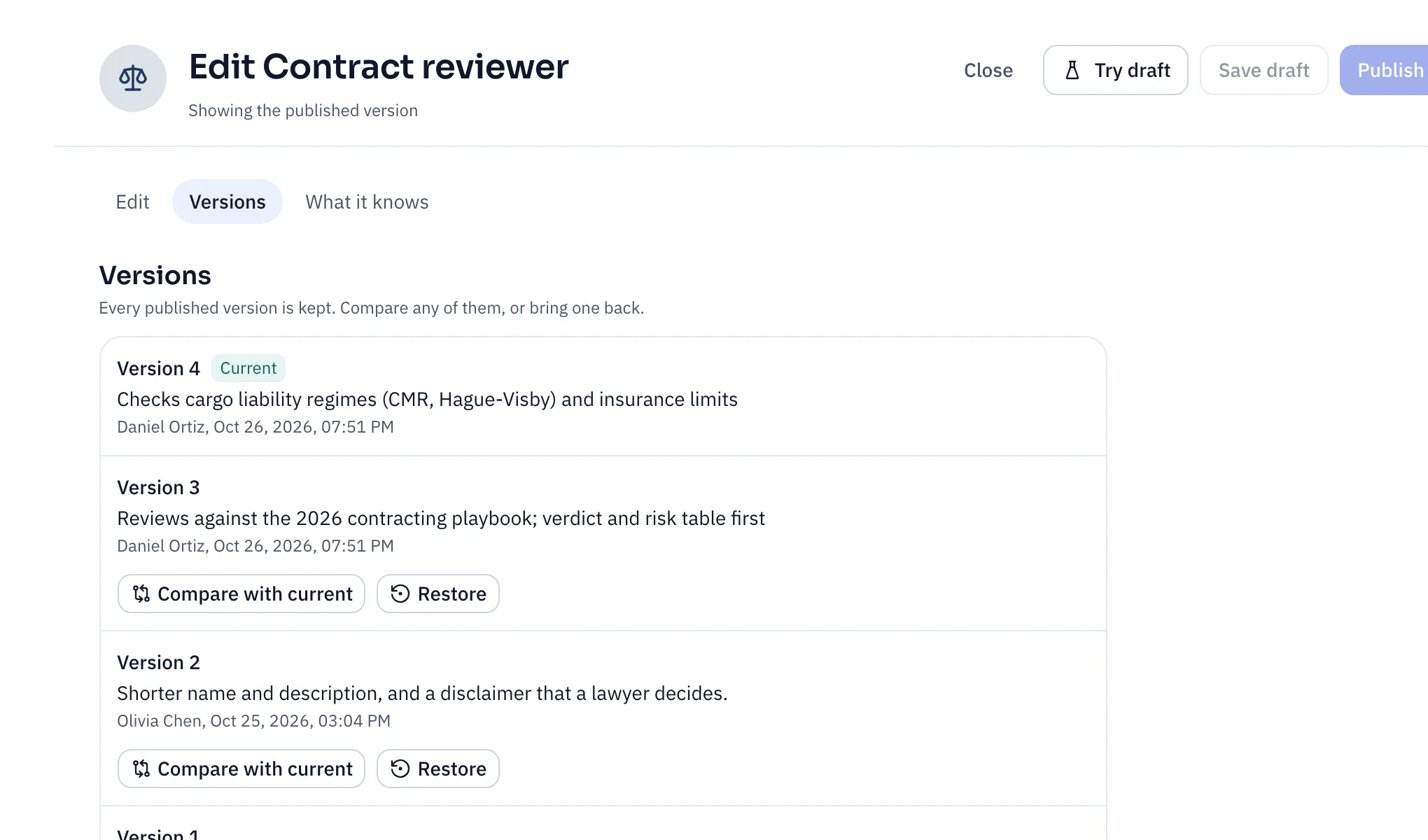
- Compare with current shows exactly what changed between two versions.
- Restore publishes an older version again, as a new version. Nothing is lost, and the history shows the rollback.
Share it or hand it over
Section titled “Share it or hand it over”| You want to | Do this |
|---|---|
| Let a few colleagues use your personal assistant | On its page, under Access, add people or teams. They can use it but not change it. |
| Let someone who isn’t an admin maintain an organization or team assistant | Under Access, add them as an Editor. Editors can change and publish it. |
| Give your personal assistant to your whole team | Under More actions, click Submit to a team or the organization. A team manager or admin reviews it. Once they publish it, the team owns it and you’re credited. |
| Build your own version of a company assistant | Under More actions, click Make a copy. |
| Send it to another Sail workspace | Under More actions, click Export file. |
Your organization can turn sharing off.
Archive an assistant
Section titled “Archive an assistant”When a job goes away, archive its assistant instead of leaving it to confuse people. Under More actions, click Archive. It disappears from the directory, and its chats become read-only. Bring back restores it.