

Memory
Sail remembers useful things about you, so you don’t have to repeat yourself in every chat. Your role, how you like answers, the projects you’re in the middle of.
Say you mentioned last week that the board meets on 12 November and you like three bullets before any detail. Today you ask “Draft my update for the board”. The assistant already knows the date and the format.
Only you can see your memories. Admins can’t, and nor can the people you share chats with.
What Sail remembers
Section titled “What Sail remembers”Memories come in three kinds. Each one is kept for as long as it’s useful.
| Kind | For example | How long |
|---|---|---|
| About you | “Job title: Chief Operating Officer” | Until you change it |
| Preferences | “Prefers executive summaries as three bullets first, then detail” | Until you change it |
| Ongoing work | “Hiring six seasonal staff at the Savannah hub from 10 November” | Fades after about four weeks without use |
Sail saves a memory in two ways:
- On its own, after a reply, when something in the chat will clearly matter later.
- When you ask, such as “Remember that our Hamburg depot closes at 18:00 on Fridays.” You can also type
/rememberin the message box.
Your name, job title and department can come from your sign-in, so Sail knows them from day one.
See when it’s used
Section titled “See when it’s used”When Sail saves or changes a memory, it says so under the reply.

- Undo takes it back straight away. You can undo for 30 days.
- Manage opens your Memory page.
To see which memories a reply drew on, click Used 3 memories under it.
Review and edit your memories
Section titled “Review and edit your memories”Click Memory in the sidebar.
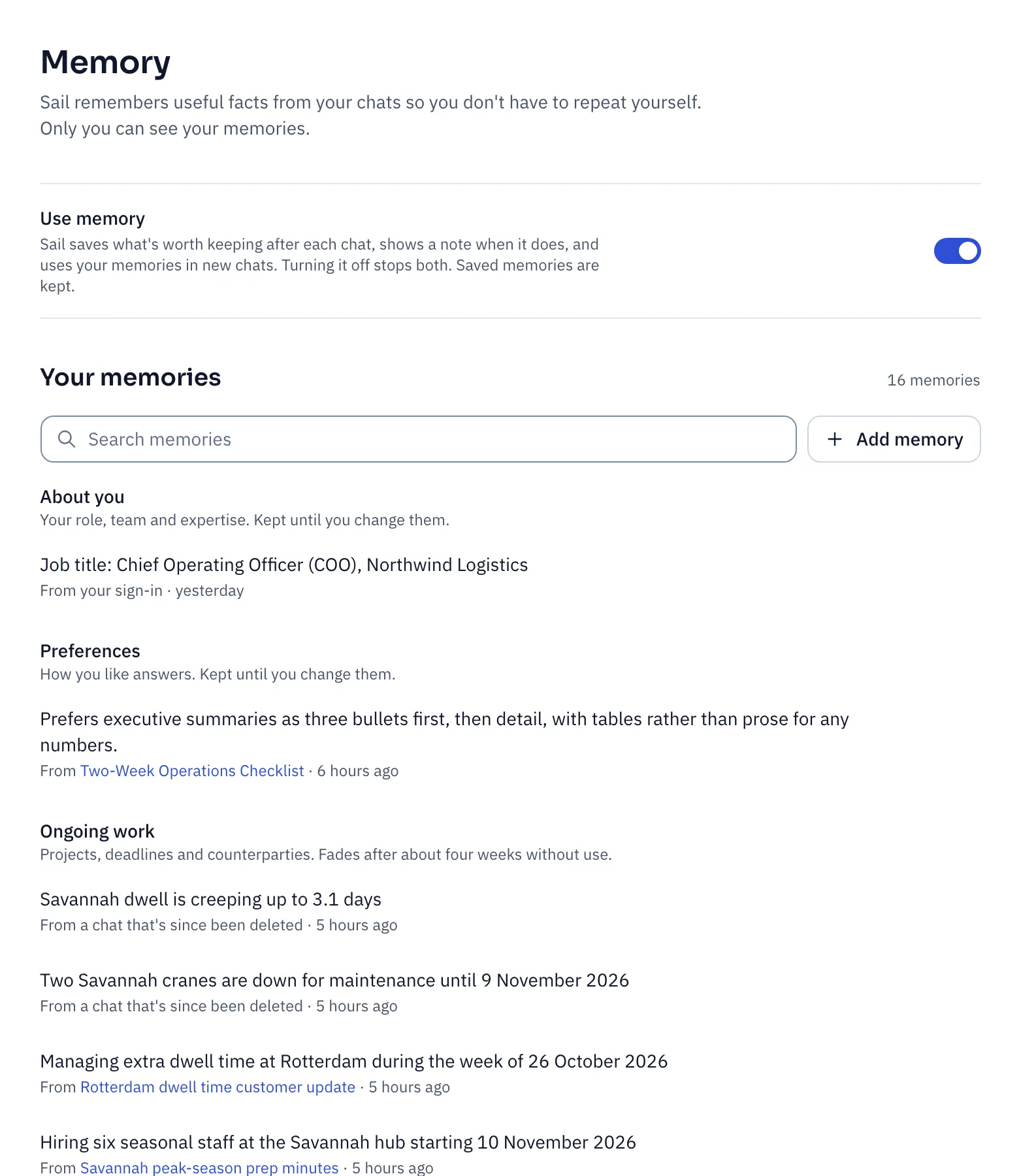
Each memory shows where it came from, such as “From Two-Week Operations Checklist”. Click the chat’s name to see the conversation it came from.
| You want to | Do this |
|---|---|
| Fix something that’s wrong or out of date | Hover it and click Edit memory. |
| Tell Sail something up front | Click Add memory. |
| Make Sail forget one thing | Hover it and click Delete memory. It’s gone for good. |
| Bring back something that faded | Click Keep using on it. |
| Start over | Click Delete all memories at the bottom. |
Tell every assistant how you work
Section titled “Tell every assistant how you work”Custom instructions, at the bottom of the Memory page, go into every chat with every assistant. Use them for the things you’d tell any new colleague:
I'm the COO. Keep answers short: the answer first, then up to three bullets.Use tables for numbers. British English. Dates as 12 Nov 2026.Memories are what Sail learns. Custom instructions are what you tell it. Both apply in every chat.
Turn memory off
Section titled “Turn memory off”| You want to | Do this |
|---|---|
| Keep one chat out of your memory | Click the memory icon in the chat’s header. That chat doesn’t read or save memories. |
| Stop memory everywhere | Turn off Use memory on the Memory page. Your saved memories are kept, but Sail stops using them or adding to them. Turn it back on whenever you like. |
If your admin turned memory off for you, the Memory page says so. Your custom instructions still apply.
Searching your past chats
Section titled “Searching your past chats”Assistants can also look through your earlier chats when it helps. Ask “What did we conclude about Rotterdam’s recovery?” and the answer names the chats it came from.
It only searches your own chats, and never ones where you turned memory off.
Assistants with their own memory
Section titled “Assistants with their own memory”Some assistants keep a memory of their own, such as an onboarding coach that tracks where you are. Those memories show on your Memory page with “Only for” and the assistant’s name. You can edit or delete them like any other.