

Organization settings
Two admin pages shape how Sail feels for everyone: Settings and Templates.
Settings
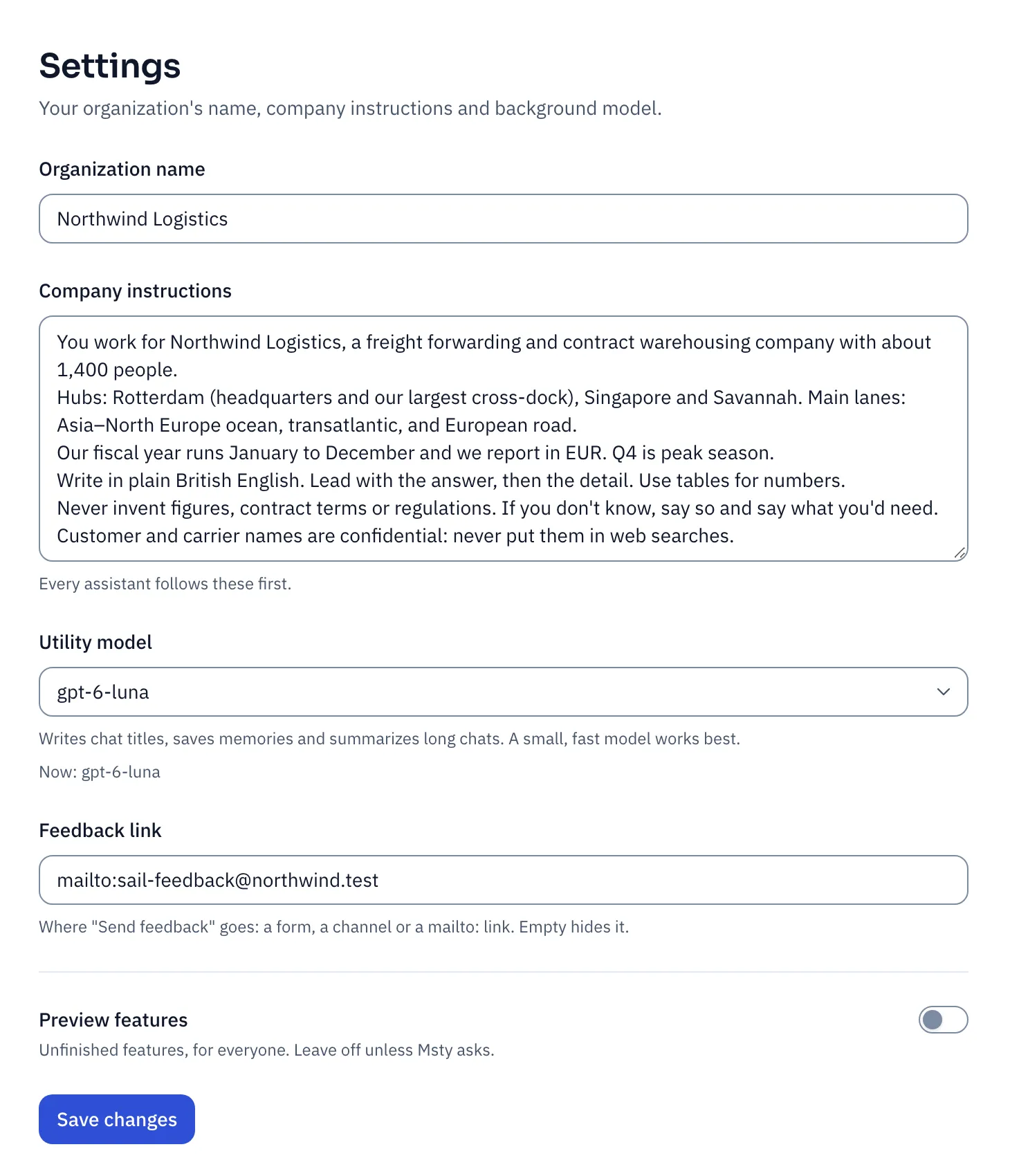
Section titled “Settings”Go to Admin → Settings.
Company instructions
Section titled “Company instructions”This is the most valuable box in Sail. Every assistant reads it first, in every chat, for everyone.
Write what any new employee would need to know on day one:
- Who you are: what the company does, where, and how big it is.
- How you work: fiscal year, currency, key places, product names.
- House style: language and spelling, tone, how to format numbers.
- Hard rules: what never to do.
For example:
You work for Northwind Logistics, a freight forwarder with about 1,400 people.Hubs: Rotterdam (headquarters), Singapore and Savannah.Our fiscal year runs January to December and we report in EUR.Write in plain British English. Lead with the answer. Use tables for numbers.Never invent figures or contract terms. If you don't know, say so.Customer and carrier names are confidential: never put them in web searches.Keep it about the whole company. Rules for one team go in its Team instructions (see People and teams), and rules for one job go in an assistant.
To check what an assistant really receives, open any assistant and click See what this assistant knows.
Utility model
Section titled “Utility model”The background model that writes chat titles, saves memories and summarizes long chats. Pick a small, fast model that follows instructions well. See Models.
Feedback link
Section titled “Feedback link”Where Send feedback in everyone’s account menu goes: a form, a chat channel, or a mailto: link. Leave it empty to hide the option.
Set it during your rollout. It’s the easiest way to hear what people want from Sail.
Preview features
Section titled “Preview features”Turns on unfinished features for everyone. Leave it off unless Msty asks you to try something. Only owners can switch it.
Make files look like yours
Section titled “Make files look like yours”When an assistant makes a Word document, spreadsheet or deck, it starts from your company’s template. Upload yours once, and every file Sail makes has your fonts, colors, logo, headers and footers.
Go to Admin → Templates.
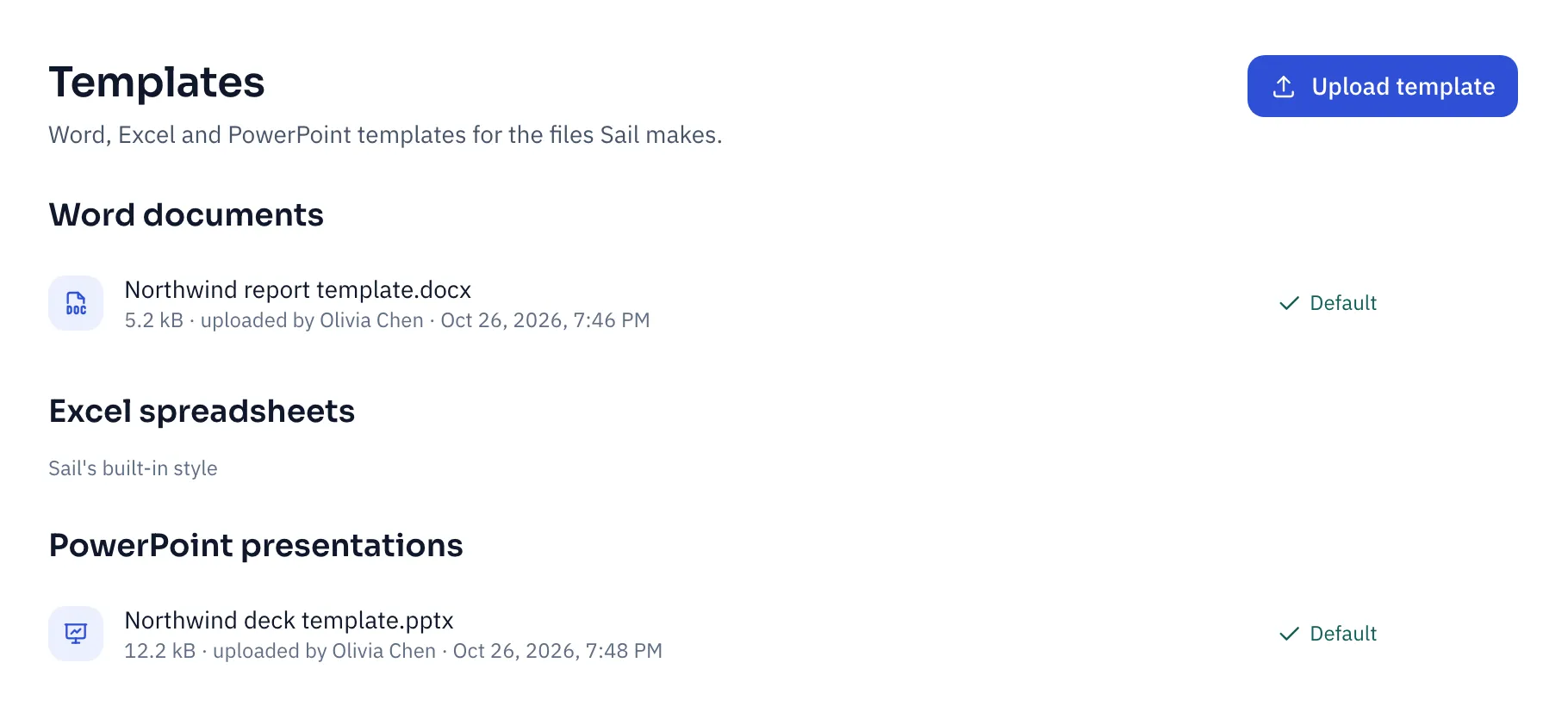
- Click Upload template.
- Pick a Word, Excel or PowerPoint file. Template files (
.dotx,.xltx,.potx) work too.
The first template of each kind becomes the default. Upload more, and click Make default on the one to use. Without a template, Sail uses its own clean built-in style.
What makes a good template
Section titled “What makes a good template”- Word: define the styles Sail uses: Title, Heading 1 to 3, List Bullet, List Number, Quote, and a table style. Put the logo in the header. Sail replaces the body with its own content.
- PowerPoint: include the Title Slide and Title and Content layouts, with your branding on the master. Sail uses the first for the opening slide and the second for the rest. Sample slides are removed.
- Excel: a “Header” or “Heading 3” cell style formats the header row. The theme sets fonts and colors.
Sail refuses templates with macros, external links or embedded objects. Save a clean copy and upload that.
Remove a template at any time. Files already made from it keep their formatting.