

Your account and data
Click your name at the bottom of the sidebar to open the account menu. Everything about you lives there.
Light, dark or system
Section titled “Light, dark or system”Under Theme, pick Light, Dark or System. System follows your computer’s setting. Your choice follows you to every device you sign in on.
See your usage and limits
Section titled “See your usage and limits”Click Your usage.
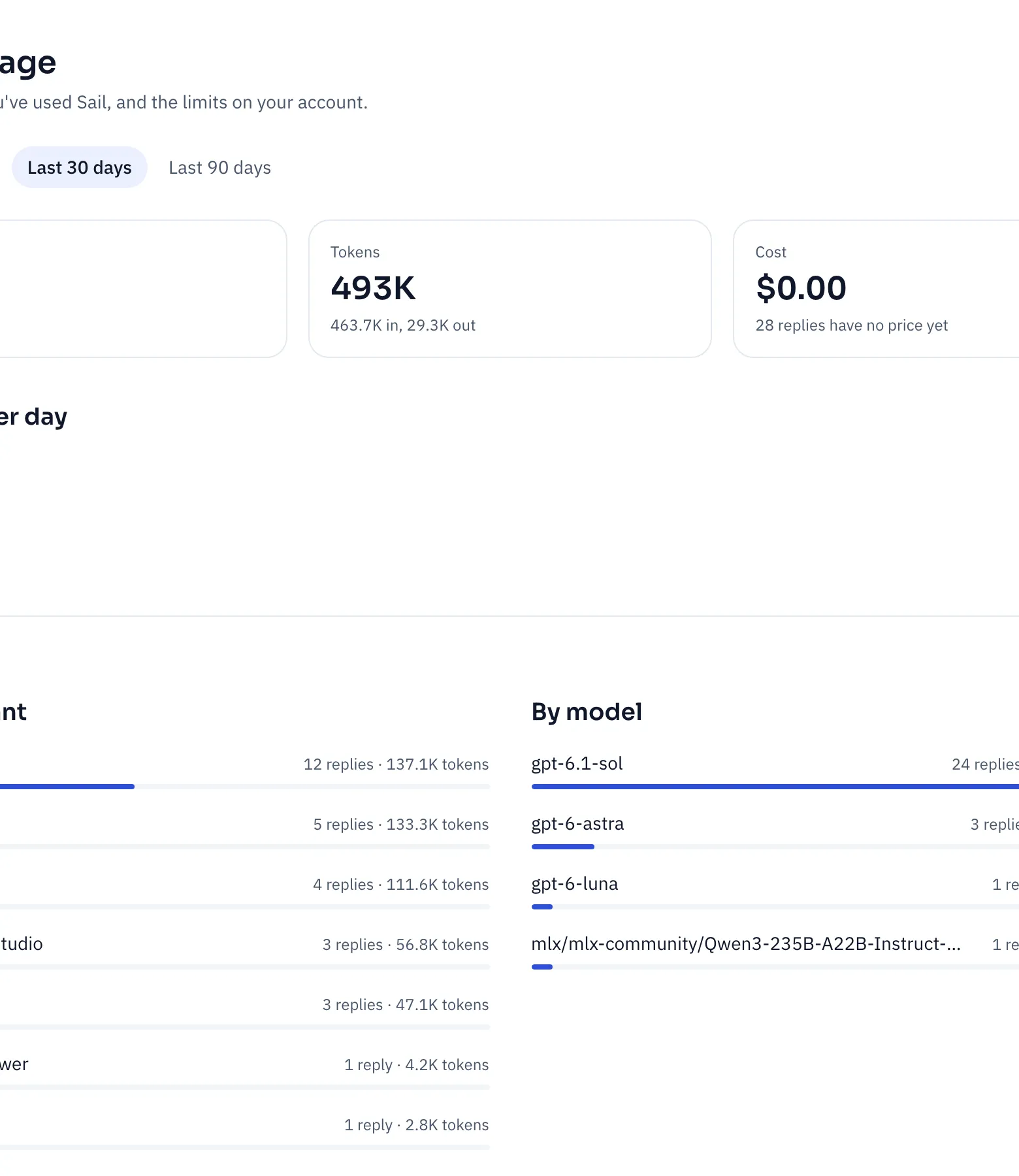
- Replies and Tokens for the last 7, 30 or 90 days, by assistant and by model.
- Cost, if your company’s Nexus reports prices.
- Your limits, set by your organization:
- Messages per hour, and how many you’ve sent in the last hour.
- Largest upload, the biggest file you can attach.
- Chats are kept: how long chats stay after their last activity, or until you delete them.
Hitting a limit that gets in your way? Ask an admin. Limits can be raised for a team.
Download your data
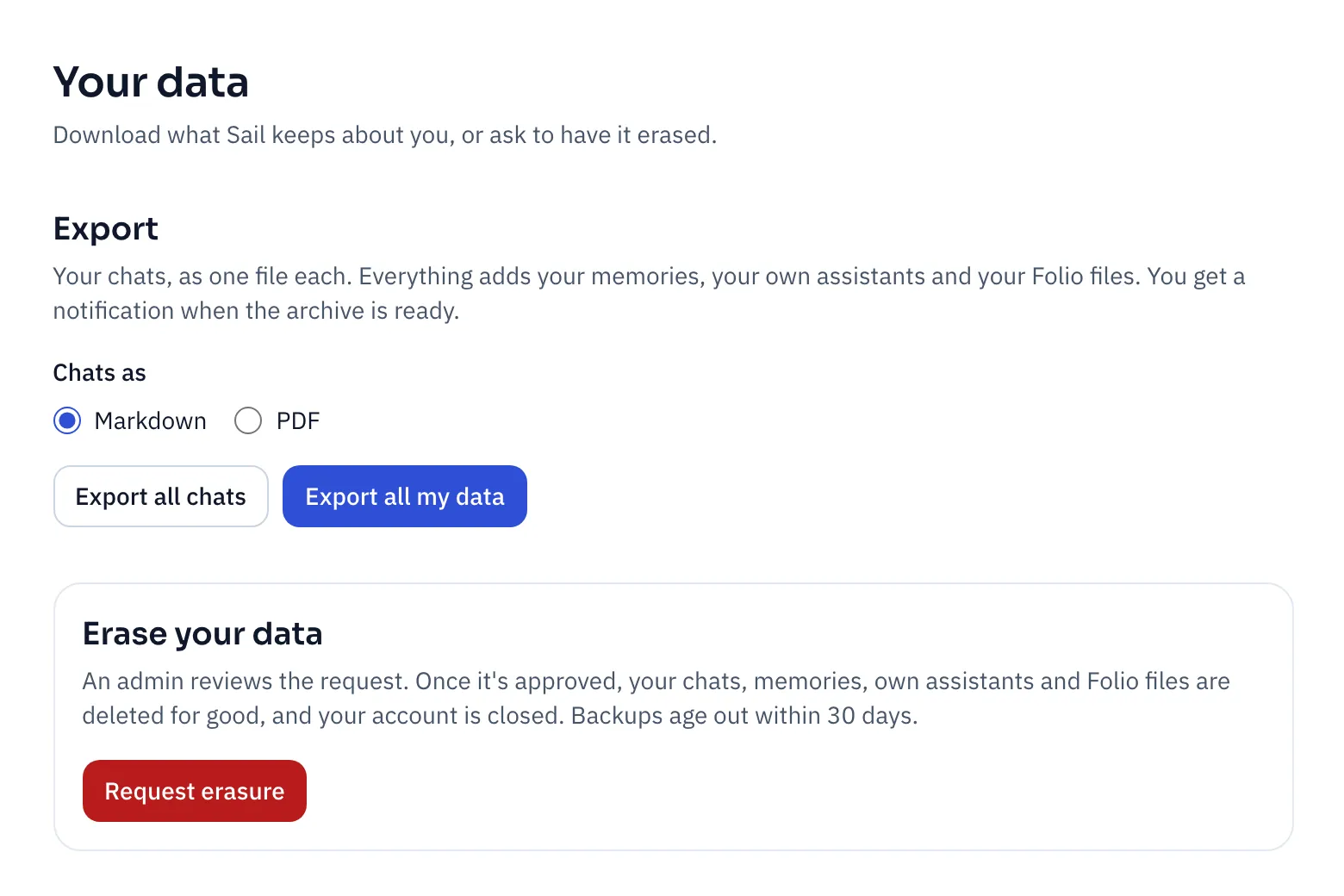
Section titled “Download your data”Click Your data.
| You want | Click |
|---|---|
| A copy of every chat, to keep or search elsewhere | Export all chats |
| Everything Sail keeps about you, such as when you leave the company | Export all my data |
Pick Markdown or PDF for your chats first.
Export all my data includes:
- every chat, as Markdown or PDF, plus a full copy in JSON;
- your memories;
- your personal assistants, as files you can import again;
- your Folio files, with every version.
Sail builds the archive in the background, often in a minute or two. You get a notification when it’s ready, and the download stays available for 7 days.
If your organization turned off exporting chats, Export all chats is hidden. Export all my data always works and still includes them.
To export just one chat, use ⋯ → Export on the chat itself.
Ask for your data to be erased
Section titled “Ask for your data to be erased”Under Erase your data, click Request erasure and confirm.
An admin reviews the request. Once they approve it:
- your chats, memories, own assistants and Folio files are deleted for good;
- your account is closed, and you’re signed out everywhere.
Changed your mind before it’s decided? Click Withdraw request. If your admin declines, the page says who declined it, so you can ask them why.
Sign out
Section titled “Sign out”- Sign out signs you out of this browser.
- Sign out everywhere signs you out on every device and browser, including this one. Use it if you’ve lost a laptop or signed in on a shared computer.
Send feedback
Section titled “Send feedback”If your admin set it up, Send feedback opens your company’s feedback form or channel.