

Sharing
You can share three things in Sail: chats, Folio files and assistants. All sharing stays inside your company. People outside it can’t open anything.
| You want a colleague to | Share |
|---|---|
| See how you got to an answer, and carry on from there | A chat |
| Read or download a document, deck or spreadsheet | A file |
| Use an assistant you built | An assistant |
Share a chat
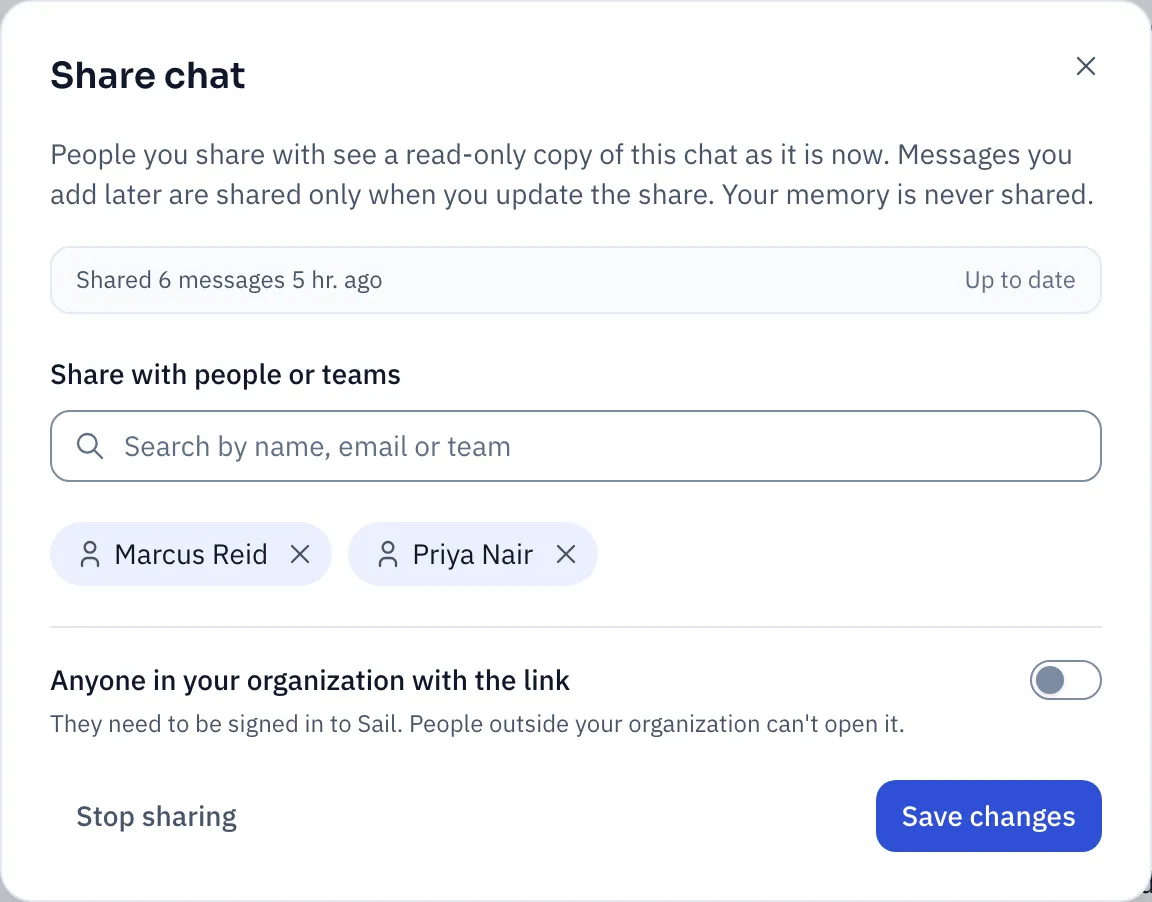
Section titled “Share a chat”- Open the chat and click Share chat at the top.
- Under Share with people or teams, find colleagues by name, email or team.
- Or turn on Anyone in your organization with the link, then Copy link.
- Click Share chat.
What they get:
- A snapshot. They see the chat as it was when you shared it, including sources and files it made. Messages you add later stay private until you click Update share.
- Read-only. They can’t add to your chat. To ask their own follow-up questions, they click Continue in my own chat. That gives them their own copy, with no link back to yours.
- Never your memory. What Sail remembers about you stays with you.
A Shared badge sits next to the chat’s title. Hover it to see who has access.
To take it back, open Share chat again and click Stop sharing. Everyone loses access straight away, including anyone with the link.
Share a file
Section titled “Share a file”- Open the file in Folio or beside a chat.
- Click Share.
- Pick people or teams.
- Under Which version, choose:
- Always the latest version, for a living document like a team checklist.
- Version 3 only, for something final, like the deck you presented, while you keep editing.
- Click Share file.
They can view and download it, but not change it. It shows up in their Folio under Shared with me.
Share an assistant
Section titled “Share an assistant”On the assistant’s page, under Access, add people or teams. They can use it but not change it. See Assistants for editors and for handing an assistant to your team.
When sharing stops by itself
Section titled “When sharing stops by itself”- You delete the chat or file.
- You leave the company.
- Your organization turns sharing off. You can still stop sharing things you shared before.