

Folio basics
Folio is where every file in Sail lives: the ones you upload and the ones assistants make for you. Each file keeps every version, and remembers which chat and which assistant made it.
You rarely need to go there first. Most files start in a chat, and Folio is where you find them again.
What Folio holds
Section titled “What Folio holds”| Kind | What it is | Good for |
|---|---|---|
| Document | A Word file | Briefs, memos, contracts, minutes |
| Spreadsheet | An Excel file, with working formulas | Rate comparisons, budgets, trackers |
| Presentation | A PowerPoint deck, with speaker notes | Board decks, customer reviews |
| A PDF | Handouts and anything that must look fixed | |
| Sail Doc | A document you write in Sail, where the AI suggests edits you accept or reject | Plans and drafts you’ll go back and forth on |
| Page | An interactive web page | Dashboards, calculators, explainers |
| Images, Markdown, code and text | Everything else you upload | Screenshots, notes, scripts |
Get a file made
Section titled “Get a file made”Ask for it in a chat, the way you’d ask a colleague. Say what goes in it and who it’s for.
- “Put the Q4 rate changes in a spreadsheet: lane, carrier, Q3, Q4 and the % change, sorted by increase.”
- “Turn these notes into a one-page Word brief for the exec team.”
- “Make a five-slide deck for Thursday’s customer review.”
- “Build a dashboard of weekly on-time % for our three hubs.”
When the file is saved, a card appears in the reply. Click it, and the file opens beside the chat.
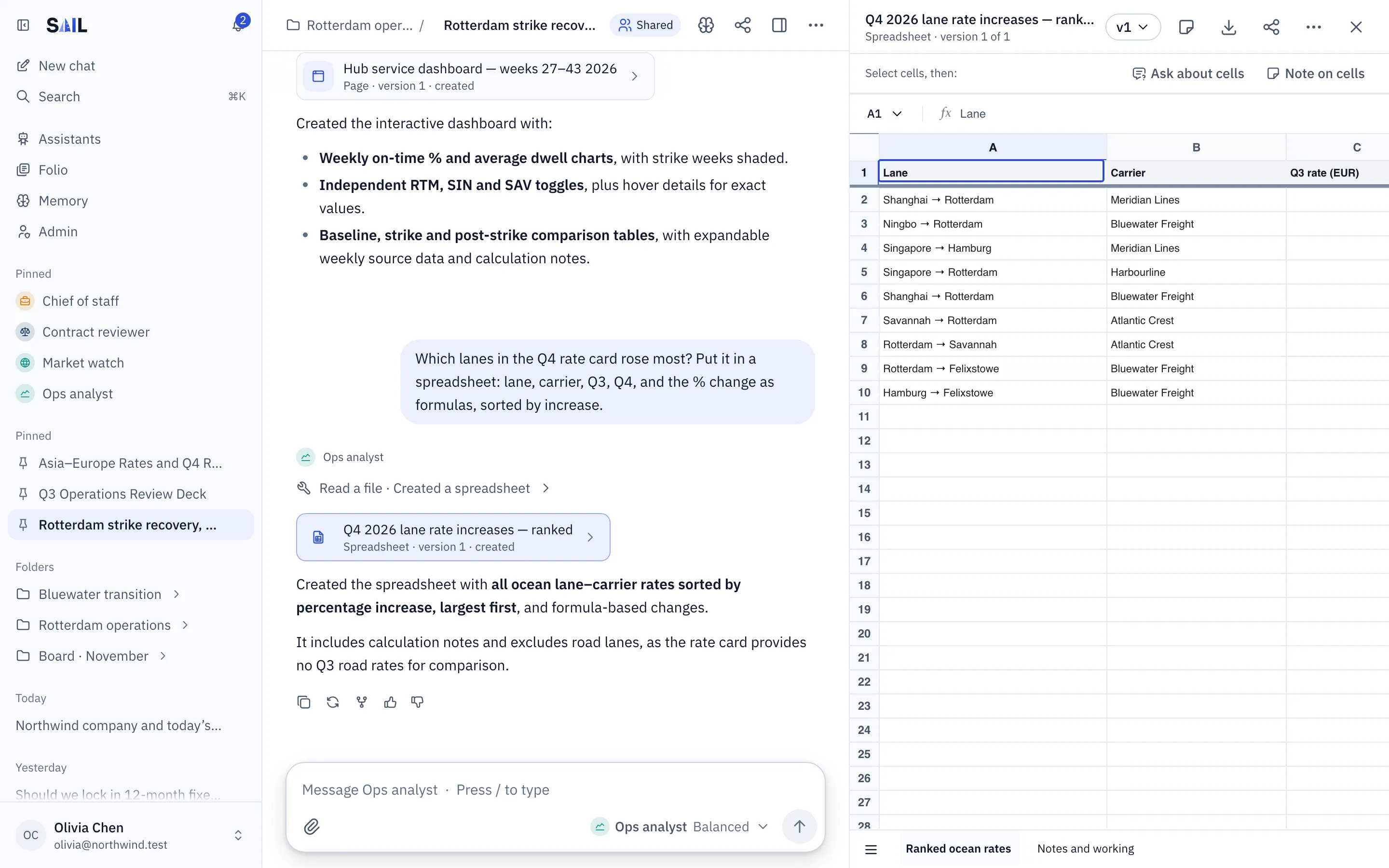
A few things worth knowing:
- It looks like your company made it. Word, Excel and PowerPoint files use the templates your admin uploaded, with your fonts, colors and logo. No template yet? Sail uses a clean built-in style.
- The card is proof. A card only appears once the file is really saved. If an assistant says it made a file and there’s no card, it didn’t.
- It’s a real file. Download it and open it in Word, Excel or PowerPoint. Formulas still work, and speaker notes are still there.
Find your files
Section titled “Find your files”Click Folio in the sidebar.
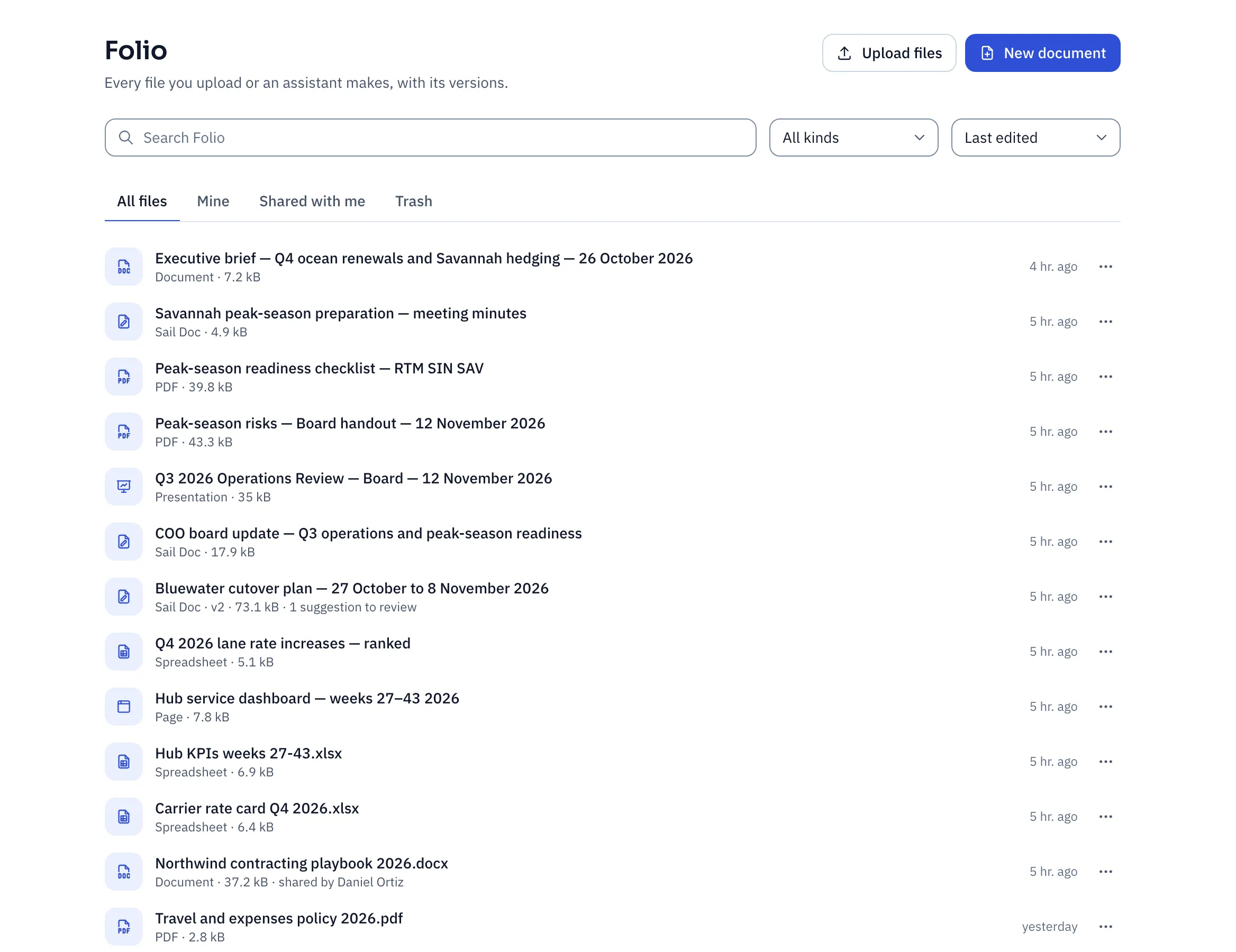
| You want to | Do this |
|---|---|
| Find last week’s deck | Type part of its name in Search Folio. |
| See only spreadsheets | Pick Spreadsheets under All kinds. |
| See what colleagues gave you | Click Shared with me. |
| Add files from your computer | Click Upload files. |
| Start writing from a blank page | Click New document. It opens a new Sail Doc. |
| Bring back something you deleted | Click Trash. |
Open a file, and the line at the top tells you where it came from, such as “Created in Q3 Operations Review Deck by Presentation studio”. Click it to jump back to that chat.
Use a file in another chat
Section titled “Use a file in another chat”Type @ and the file’s name in any chat. The assistant reads it as part of your question.
For example, in a new chat: “@Carrier rate card Q4 2026 which lanes went up more than 10%?”
Point at the part you mean
Section titled “Point at the part you mean”Describing “the third row in the second table” is slow. Select it instead.
- Text: select it, then click Ask about this.
- Cells: select them, then click Ask about cells.
- A slide: click Ask about slide 3.
A chip appears in the message box, such as Q3!A1:C4, and your question goes with it.
Review the whole thing, then revise once
Section titled “Review the whole thing, then revise once”Reading a draft and spotting five things to fix? Don’t send five messages. Collect notes as you read:
- Select text, cells or a slide, and click Add note.
- Write what should change, like “Use the Q4 figure here” or “Too long, cut to two lines”.
- Keep reading and adding notes.
- Click Revise with 5 notes.
All your notes go to the assistant in one message, and it works through them in one go.
Versions
Section titled “Versions”Every change makes a new version. Nothing is overwritten.
| You want to | Do this |
|---|---|
| See an earlier draft | Pick it from the version menu at the top, such as v2. |
| See exactly what changed | Click Compare versions. Added, removed and changed parts are marked. |
| Take back a copy a colleague edited | Click Upload new version. It must be the same kind of file, like a deck for a deck. |
That last one matters more than it sounds. Say an assistant made a deck, and your manager sends it back with comments. Upload their copy as a new version, and the assistant keeps working from it.
Download, export and share
Section titled “Download, export and share”- Download saves the file as it is.
- Export turns it into another format, for example:
- a Word or PowerPoint file into a PDF, to send outside the company;
- a Sail Doc into Word, to hand to someone who doesn’t use Sail;
- a spreadsheet’s first sheet into CSV, to load into another tool.
- Share lets people or teams view and download the file. They can’t change it.
When you share, pick which version they get:
- Always the latest version: for living documents, like a team checklist.
- Version 3 only: for something final, like the deck you presented, while you keep editing your copy.
Delete a file
Section titled “Delete a file”Click ⋯ next to the file, then Delete. It moves to Trash for 30 days, then it’s gone for good. People you shared it with lose access straight away.
If a file won’t upload
Section titled “If a file won’t upload”- “The file is larger than … MB”: your admin sets the size limit. Split or compress the file.
- “This file has macros, external links or embedded objects”: Sail refuses those for safety. Save a copy without them and upload that.
- “File uploads are turned off for you”: your admin controls who can upload. Ask them.