

Chats
Your first chat covers the basics: asking, picking an assistant, attaching files. This page is about living with chats day to day: finding them, tidying them, and getting more out of a reply.
Find a chat
Section titled “Find a chat”| You remember | Do this |
|---|---|
| Something that was said in it | Press ⌘ K and type a few words. Search looks inside your messages, not just titles. |
| Roughly when you had it | Scroll the sidebar. Chats are grouped into Today, Yesterday, Previous 7 days, Previous 30 days and Older. |
| Nothing much | Click All chats at the bottom of the sidebar for the full list, newest first. |
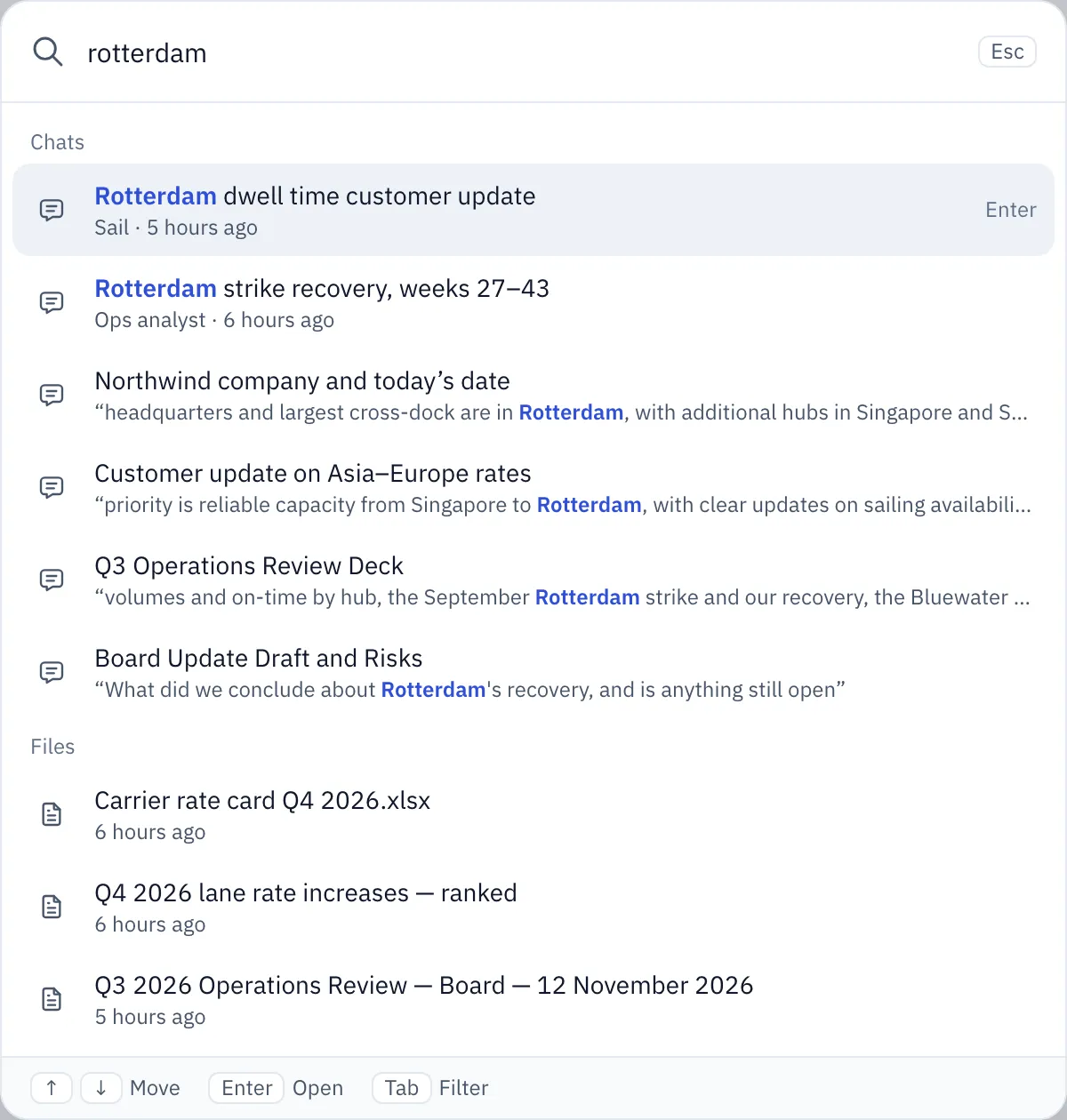
Search finds assistants, your chats and your Folio files in one place. Press Tab to narrow it to Assistants, Chats, Files or Actions. It only ever searches your own chats.
Keep the sidebar tidy
Section titled “Keep the sidebar tidy”Hover a chat in the sidebar and click ⋯.
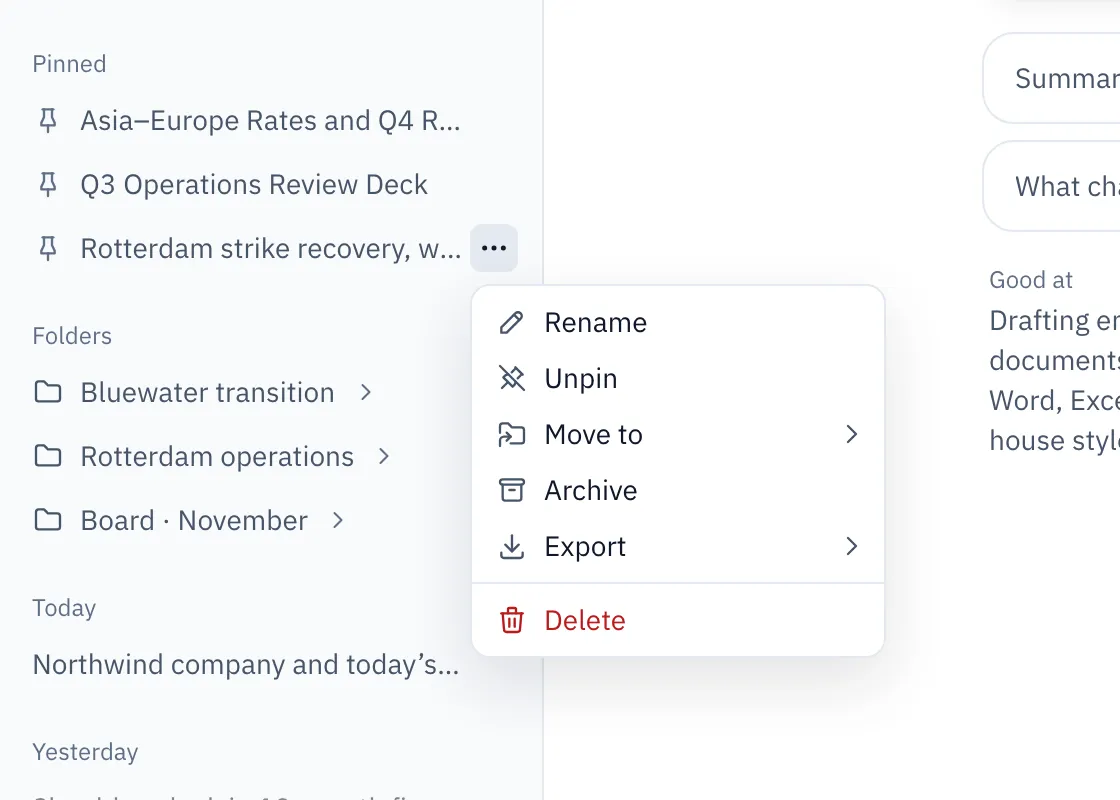
| You want to | Use |
|---|---|
| Keep a chat you come back to every week at the top | Pin |
| File it with related chats | Move to, then a folder. See Folders. |
| Clear it out of the way but keep it | Archive. It leaves the sidebar but still shows up in search, and in All chats under Archived. Send a new message in it, and it comes back. |
| Give it a name you’ll recognize | Rename. Sail names chats on its own after the first reply, but you know best. |
| Keep a copy outside Sail | Export, as Markdown or PDF. |
| Get rid of it | Delete. It moves to the trash for 30 days, then it’s gone for good. |
Try a different answer
Section titled “Try a different answer”Not happy with a reply? You have three ways to go, depending on what’s wrong.
-
The answer is off, but your question was fine: click Regenerate reply. You get a new version and keep the old one. Use ‹ and › under the reply to flip between them.
Want a second opinion from a stronger model? Switch the model in the message box first, then regenerate.
-
Your question was off: hover your message and click Edit message. Sail answers again from that point. The original stays as an earlier version.
-
The chat is good so far, but you want to go two directions: click Fork from here on a reply. You get a new chat with everything up to that point, and the original stays as it was.
For example: you have a strong market analysis, and you want one version rewritten for customers and another for the board.
Queue up your next questions
Section titled “Queue up your next questions”You don’t have to wait for a reply to finish. Type your next message and send it. It waits in a queue above the message box and goes out as soon as the reply is done.
- Reorder or edit queued messages before they go.
- Click Send now to send the next one straight away.
- The queue lives on the server, so it keeps going if you close the tab or switch devices.
If you stop a reply, or one fails, the queue pauses until you send another message or click Send now.
When an assistant asks you something
Section titled “When an assistant asks you something”Sometimes a guess would waste the work, like building a whole deck for the wrong audience. Then the assistant asks first.
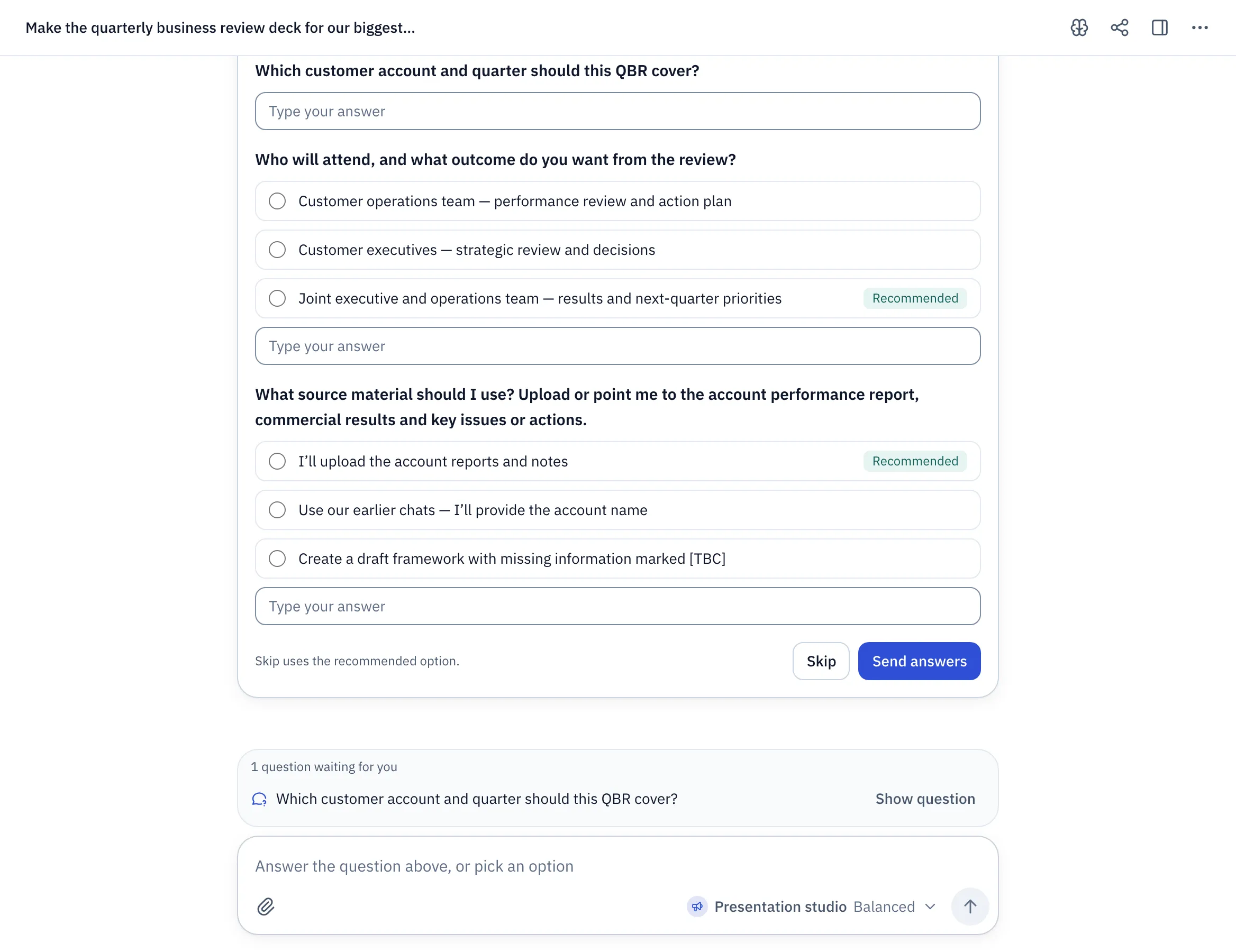
- Needs your answer: the reply waits. Pick an option, type your own, or click Skip to go with the recommended one.
- Going ahead with a best guess: the reply carries on with the recommended answer, shown as “Going with: …”. Changed your mind? Click Change, and the reply updates.
Each assistant decides how often it asks. If one asks too much, tell its owner.
See everything about a chat
Section titled “See everything about a chat”Click This chat in the chat’s header (the panel button at the top right).
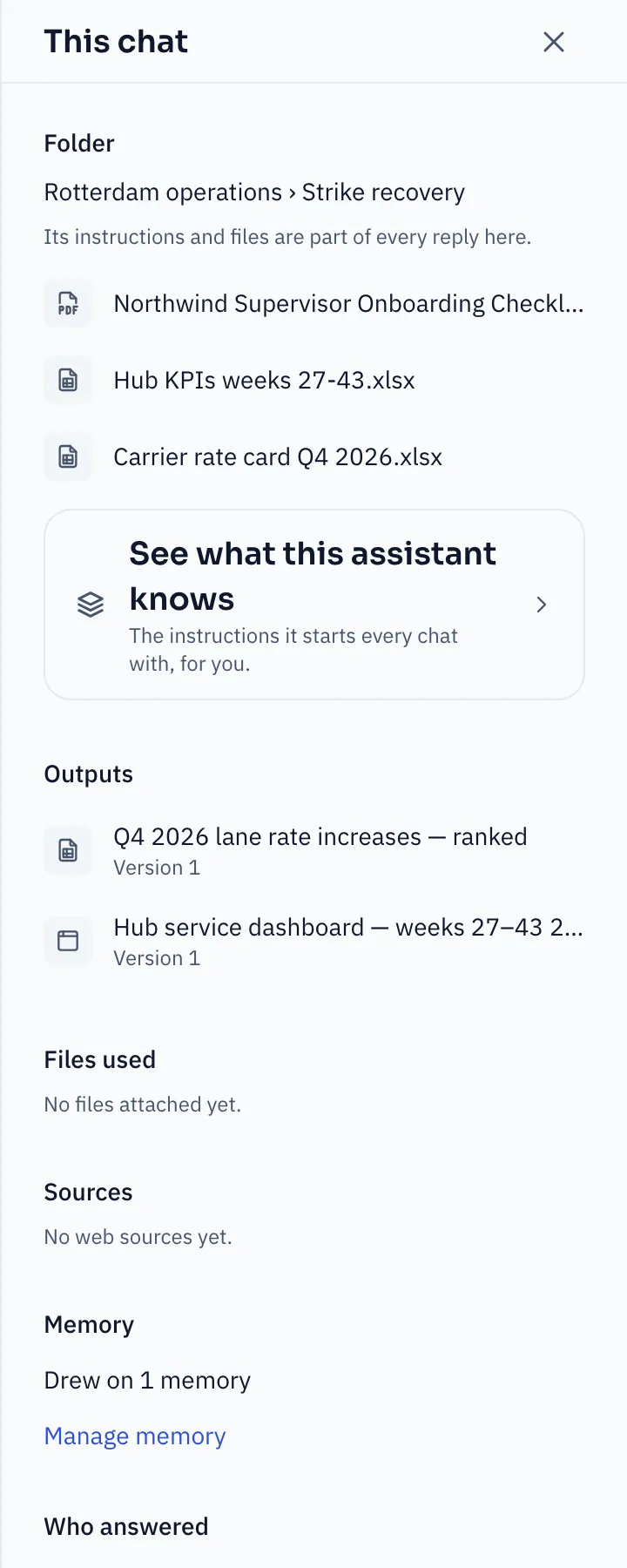
It collects what’s scattered through a long chat:
- Outputs: every file the chat made, with its latest version.
- Files used: everything you attached.
- Sources: every web page the assistant cited.
- Memory: memories it used or saved, with Undo.
- Who answered: which assistants replied, including any you @mentioned.
Long chats
Section titled “Long chats”Chats can run for weeks. When one gets close to the model’s limit, Sail summarizes the oldest part on its own and keeps the recent turns word for word. A quiet “Earlier messages summarized” line shows where.
The assistant’s instructions, your memory and the files in the chat are never summarized away. If a very old detail matters, mention it again, or start a new chat and @mention the file you need.
Web search and sources
Section titled “Web search and sources”When an assistant has web search, it decides on its own when to search. You can also ask outright: “Search the web for this week’s Asia–Europe spot rates.”
- “Searched the web” and “Read a web page” lines show what it did.
- Numbered citations in the answer link to the pages it used. The full list sits under the reply.
- Links that leave Sail ask before they open.
No search happening? Your organization, the assistant, or Nexus may not offer it. Ask your admin.
Chat without memory
Section titled “Chat without memory”Click the memory icon in the chat’s header to turn memory off for that chat. The assistant won’t use what it knows about you, won’t save anything new, and the chat is left out of searches of your past chats.
Use it for one-off chats you don’t want shaping later answers, like helping a colleague with their project.